
Block discount codes on sale items
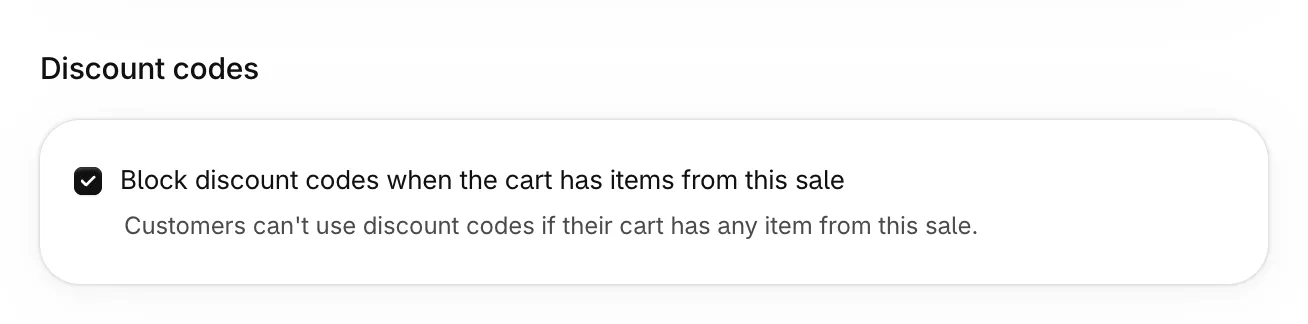
Customers can stack a Shopify discount code on top of your sale price. With Block discount codes when the cart has items from this sale, Platmart Bulk Price Editor refuses discount codes on any cart that holds an item from that sale, including the full-price items in that cart. Automatic discounts keep working.
Before you start
Section titled “Before you start”- New or scheduled sales only. A sale that has already started can’t turn blocking on. Set it up before the sale starts.
- The sale sets a compare at price. The default compare at price action for new sales, Set to old price (discount), does this.
- Discount access. The first time, the app asks Shopify for permission to manage discounts in your store.
Turn on blocking for a sale
Section titled “Turn on blocking for a sale”- Create a sale or edit a scheduled one.
- In the Discount codes card, if you see Allow discount access, click it and approve Shopify’s prompt. You only do this once per store.
- Select Block discount codes when the cart has items from this sale.
- Read Before you turn this on and click I understand, continue.
- Save the sale.
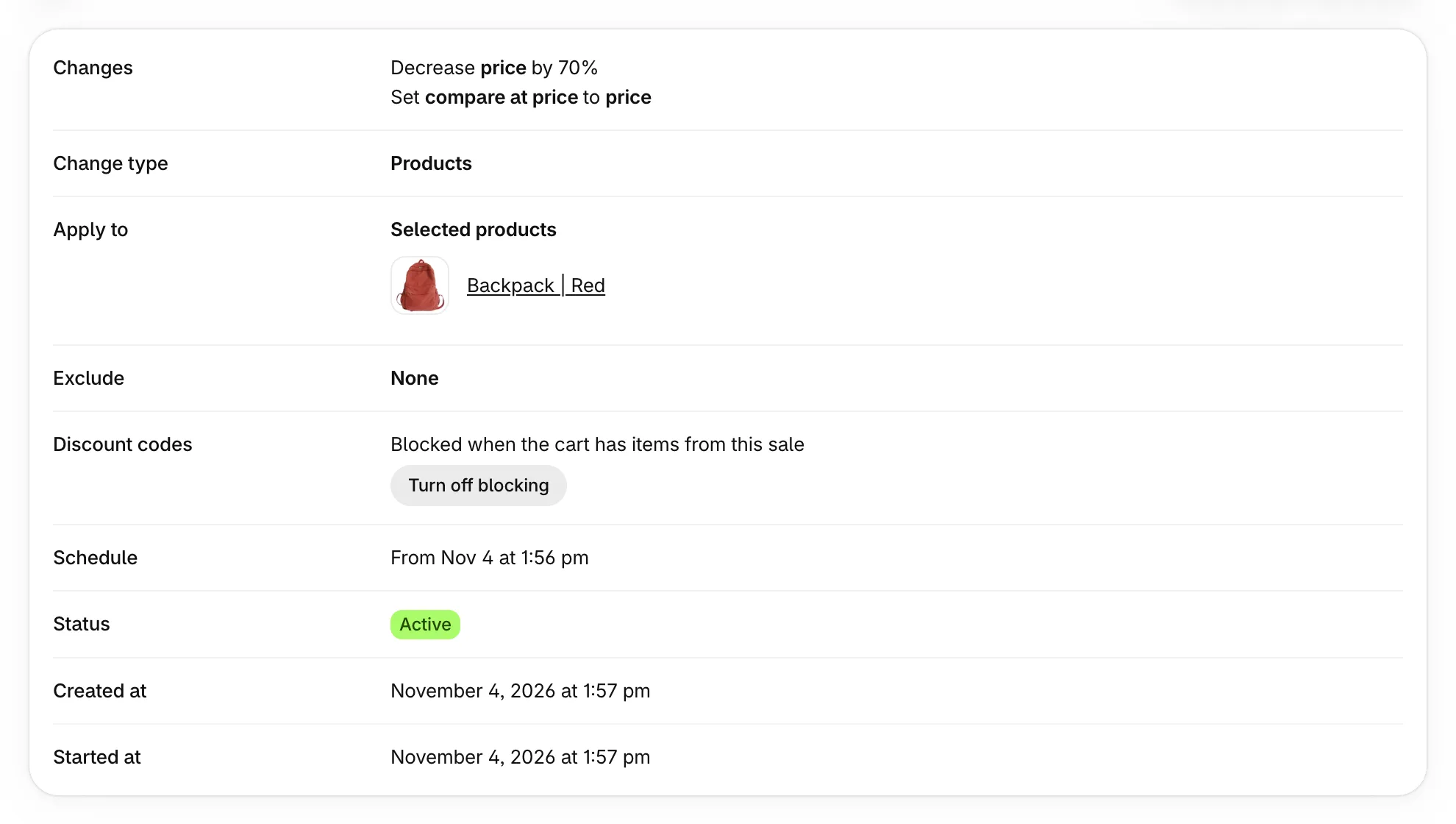
Blocking starts when the sale becomes active. The sale’s page then shows Blocked when the cart has items from this sale, and the sales list marks the sale with Blocks discount codes.
What customers see
Section titled “What customers see”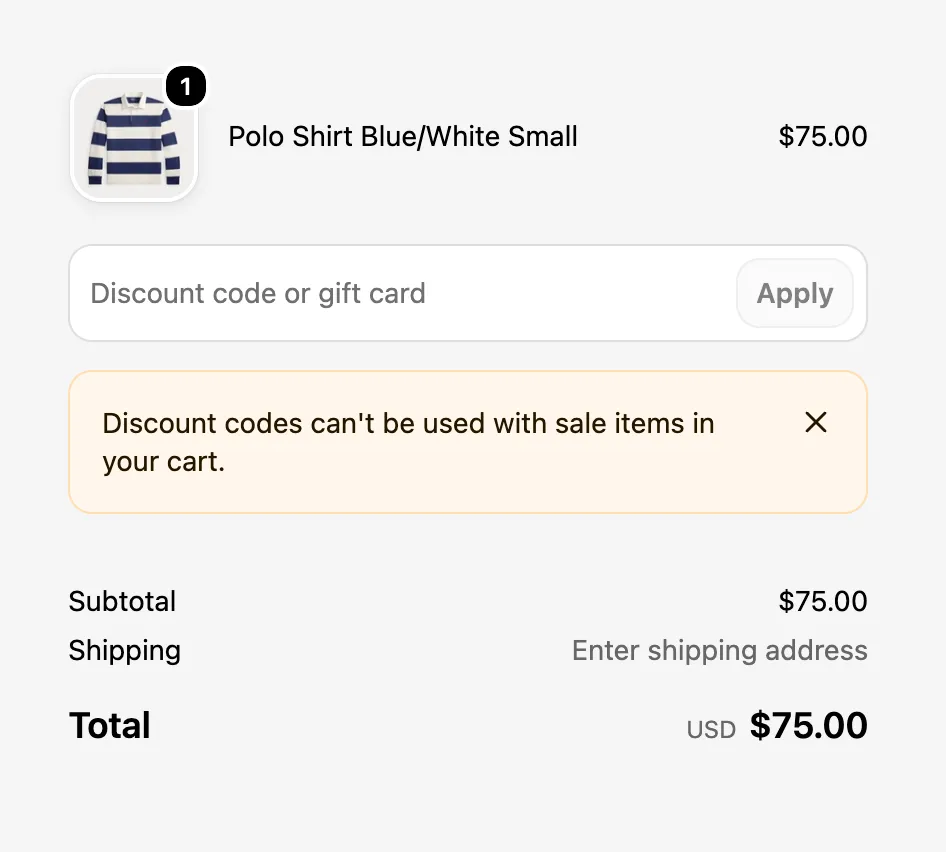
- The whole cart is blocked. One item from the sale blocks discount codes for the whole cart, including full-price items. Shopify accepts or refuses a code for the cart, not per item.
- A message at checkout. A code typed at checkout is refused with “Discount codes can’t be used with sale items in your cart.” The message is translated for common languages.
- The cart page too. A code entered on your theme’s cart page is refused as well. Depending on the theme, the cart page shows Shopify’s general message or no message, and checkout shows ours.
- Discount links fail silently. A code from a discount link, or one added to the cart earlier, is removed at checkout without a message. A campaign link can look broken to customers buying sale items.
- All code types. Amount off products, amount off order and free shipping codes are blocked, including codes that don’t combine with other discounts.
- Automatic discounts still apply. Only discount codes are blocked.
- Gift cards don’t count. A gift card in the cart never blocks codes.
Market sales
Section titled “Market sales”A sale on market prices blocks codes only for customers in that market’s countries, and in markets that share its catalog. Customers in other countries can still use codes. If a customer changes country at checkout, the code is checked again.
Turn off blocking
Section titled “Turn off blocking”On the sale’s page, click Turn off blocking and confirm. Codes work again on the customer’s next cart update, and the sale keeps running.
On a sale that has already started, blocking can’t be turned back on. A scheduled sale can be edited to turn it on again.
When a sale ends or is disabled, its codes work again on their own. Duplicating a sale starts the copy with blocking off.
The discount in your Shopify admin
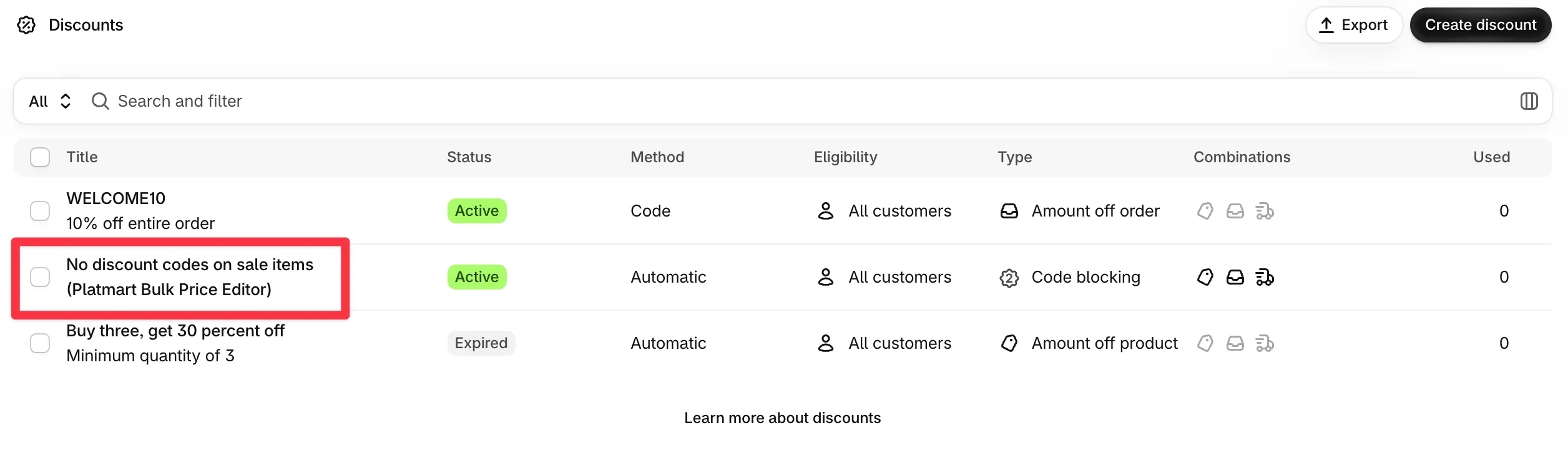
Section titled “The discount in your Shopify admin”To block codes, the app adds one automatic discount to your store. It appears in Discounts as No discount codes on sale items (Platmart Bulk Price Editor) with the type Code blocking. The app turns it on with your first blocking sale and off with the last, so it shows as expired between sales. It counts toward Shopify’s limit of 25 automatic app discounts per store. If your store already has 25, blocking can’t turn on, and the sale’s page stays on Turning on.
If a code still works on a sale item
Section titled “If a code still works on a sale item”- Check that the sale’s page says Blocked when the cart has items from this sale.
- For a market sale, check that the customer’s country is in the sale’s markets.
- Check that the item shows a compare at price above its price in that country.