
Some sales need a different price for each product, or cover more products than you can pick one by one. A sale can now take its variants from a CSV file that lists them by Variant ID or SKU, with a sale price and compare-at price for each one if you want. Choose CSV file upload under How to change prices when you create a sale.
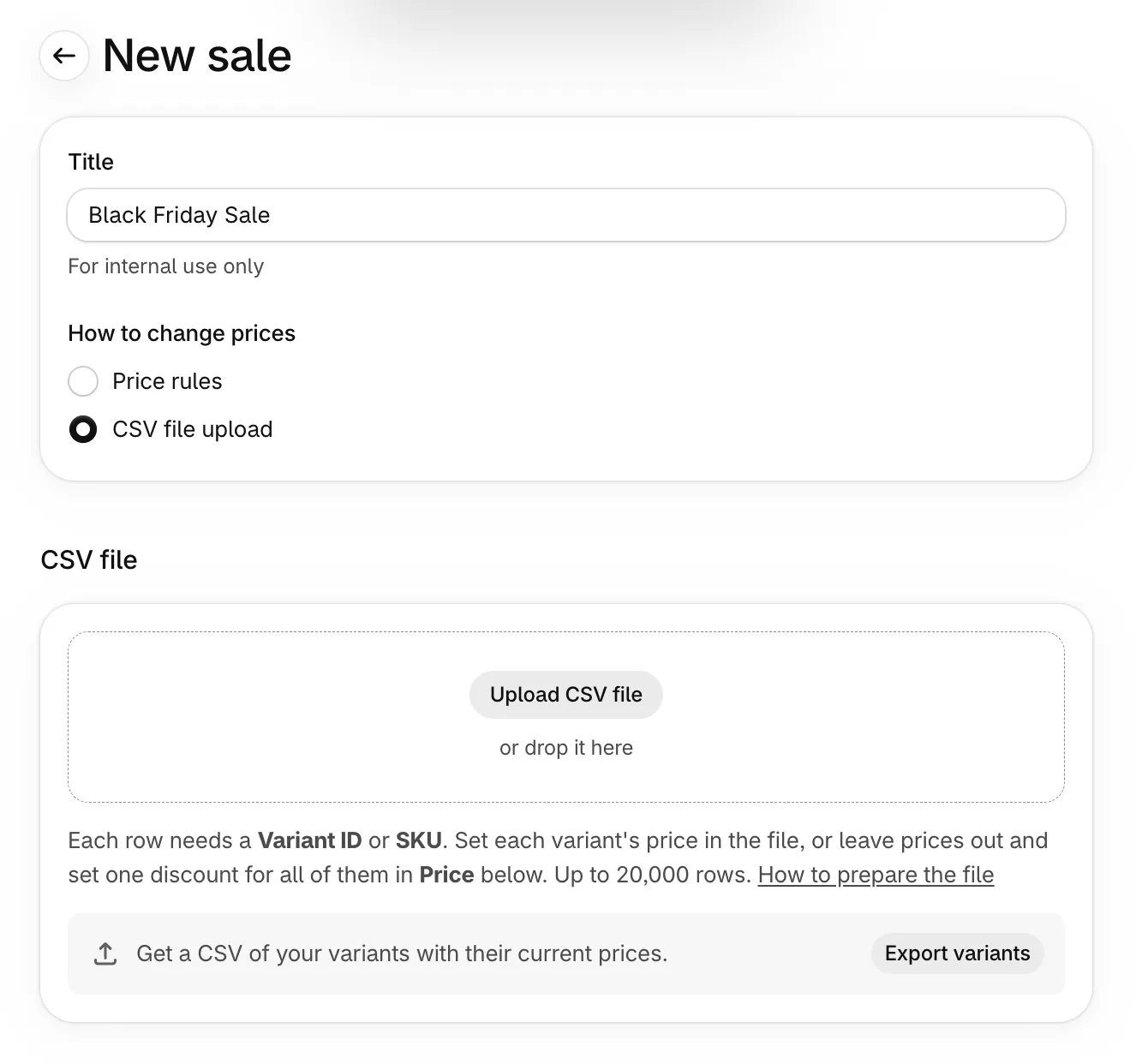
Click Export variants to start from a file of your current prices, or use a template from another price app. A file without prices applies one discount to every variant in it. CSV file upload is in early access: click Request access on the sale form and we’ll turn it on for your store. Learn how to prepare the file.