
Linked groups
When a single product has lots of colors or styles, a long row of swatches can feel cluttered. You can split them into separate, labeled rows - like Core and Limited - and keep them all on the same product page.
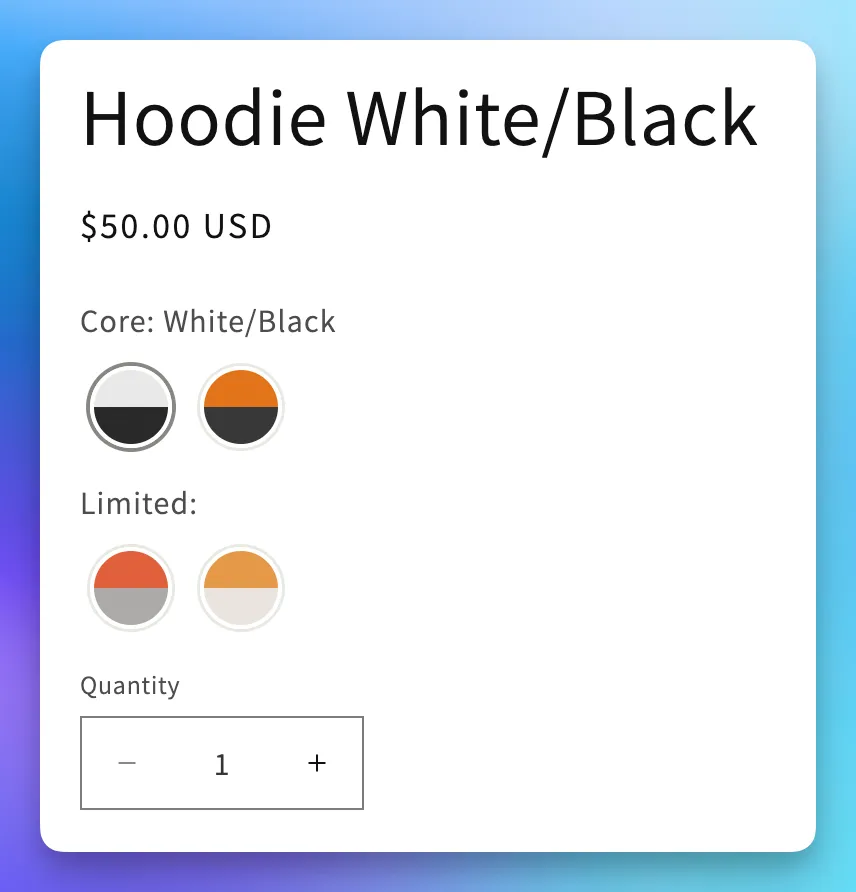
This uses a feature called linked groups: you create one product group per section, then link them together so the storefront knows to show them as labeled rows.
Set it up
Section titled “Set it up”We’ll walk through it with a hoodie that comes in 6 core colors and 3 limited-edition colors.
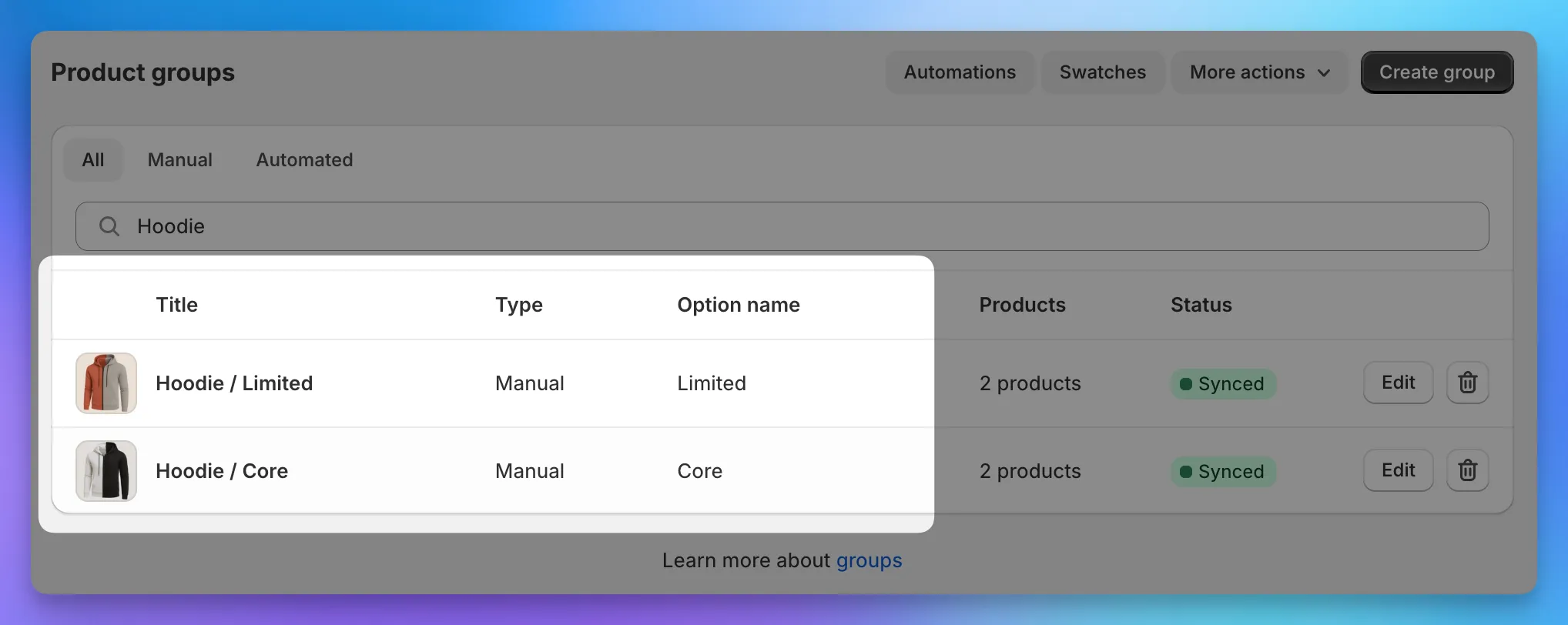
Step 1: Create the groups
Section titled “Step 1: Create the groups”Create one group per section. Use the Option name field for the section heading - that’s the label your customers will see above each row.
For our hoodie:
- Hoodie / Core with option name Core
- Hoodie / Limited with option name Limited
A suffix on the group name (/ Core, / Limited) keeps things tidy in the admin without affecting how it shows on the storefront.
Step 2: Link the groups together
Section titled “Step 2: Link the groups together”Open one of the groups, scroll to Advanced > Linked groups, and pick the other group from the dropdown. Save.
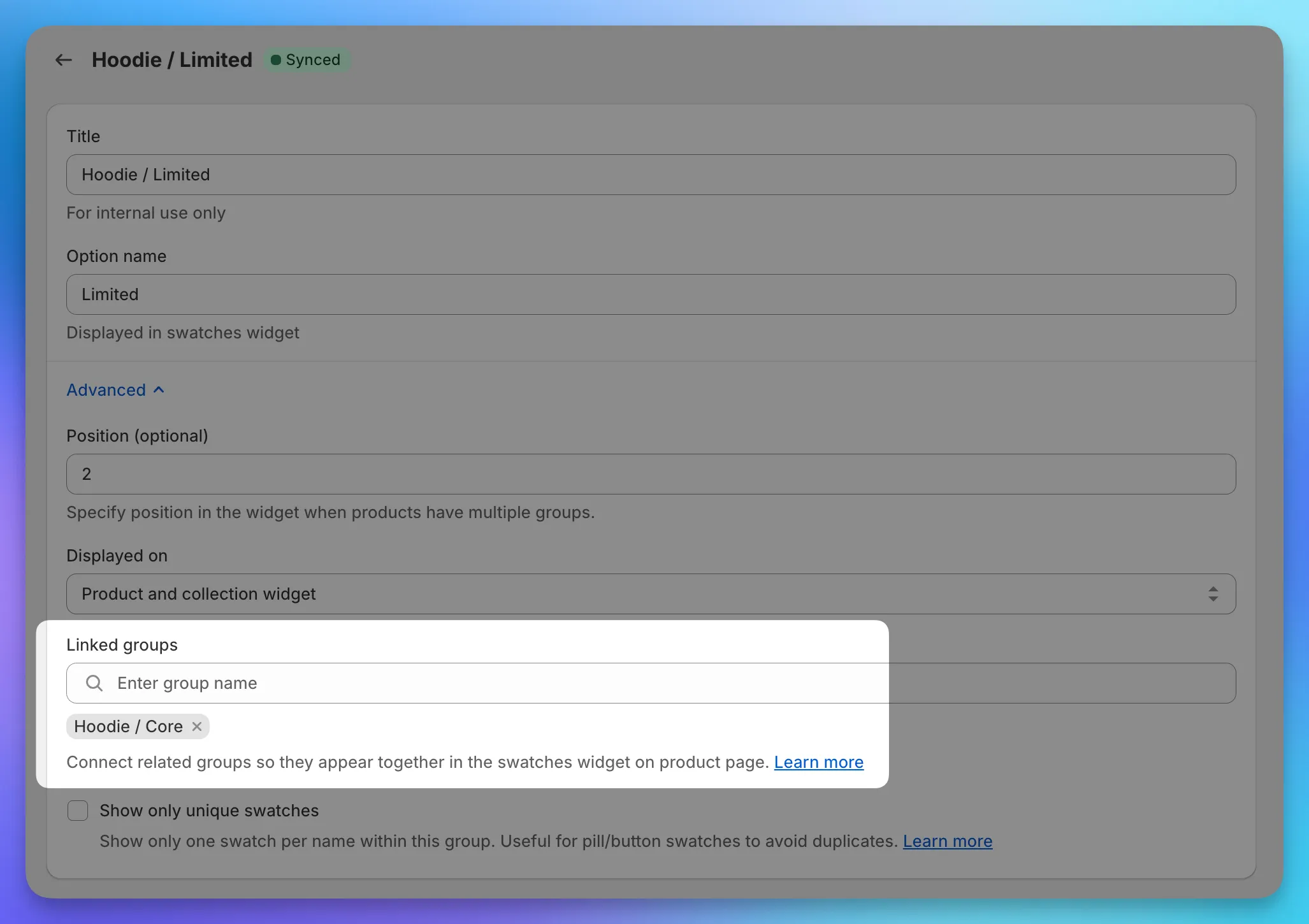
You only need to link from one side. The other group picks it up automatically.
Step 3: Set the order
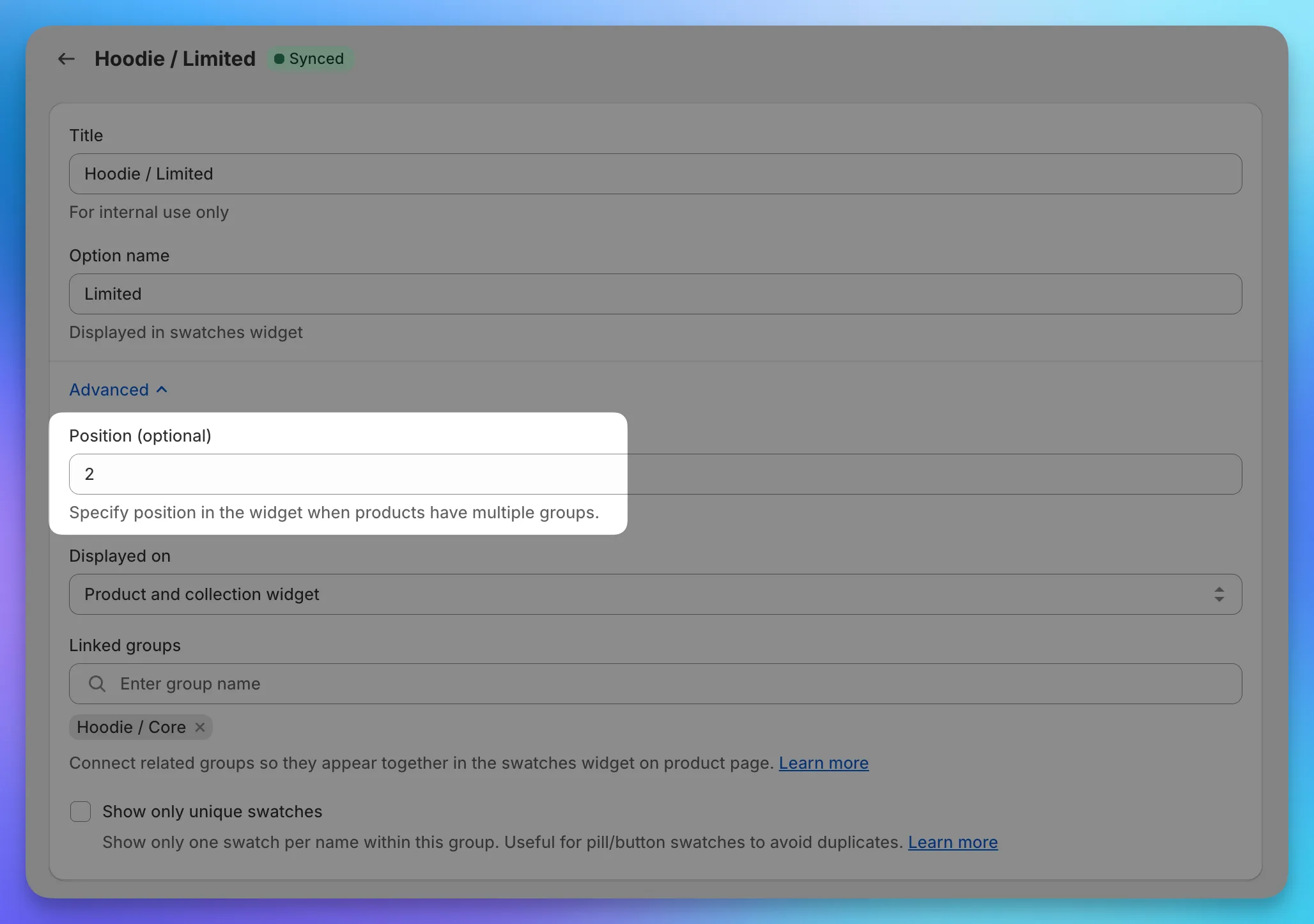
Section titled “Step 3: Set the order”Each group has a Position field in Advanced settings. Lower numbers render first.
For the hoodie, set Position 1 on the Core group and Position 2 on Limited, so Core appears at the top.
Step 4: Check the result
Section titled “Step 4: Check the result”Open the hoodie’s product page on your storefront. You should now see two labeled rows: Core (6 swatches) and Limited (3 swatches), in that order.
How linked groups appear on collection cards
Section titled “How linked groups appear on collection cards”Section labels and split rows are a product-page thing. On collection pages there isn’t room for headings, so the linked groups collapse into a single row of swatches per card - all your Core and Limited swatches shown together, in order. Duplicates (same swatch in both groups) are shown once.
If a shopper wants to see the labeled split, they can click into the product.
What happens when you edit a linked group
Section titled “What happens when you edit a linked group”Linked groups stay in sync with each other. When you save changes to one, we queue updates for every group it’s linked to as well.
A small edit might take a little longer to show up if your group has several linked siblings, but everything usually reaches your storefront within a few minutes.
Other ways to use this
Section titled “Other ways to use this”The Core/Limited setup works for plenty of similar situations:
- Standard vs. premium - separate base materials from upgraded ones (cotton vs. silk, plastic vs. metal)
- By collection - when one product belongs to multiple collections, group swatches accordingly
- Long lists in general - if you have 30+ colors, splitting them into two groups makes the product page much easier to scan