Out-of-stock and inactive products
Control how the app treats products and variants that shoppers can’t buy: style the out-of-stock ones, sort them out of the way, or hide them completely.
Out-of-stock swatches in product groups
Section titled “Out-of-stock swatches in product groups”When a product in a group is sold out, the app crosses out its swatch but keeps it clickable. Change this on the Appearance page, under the Product groups tab, in the Out of stock card.
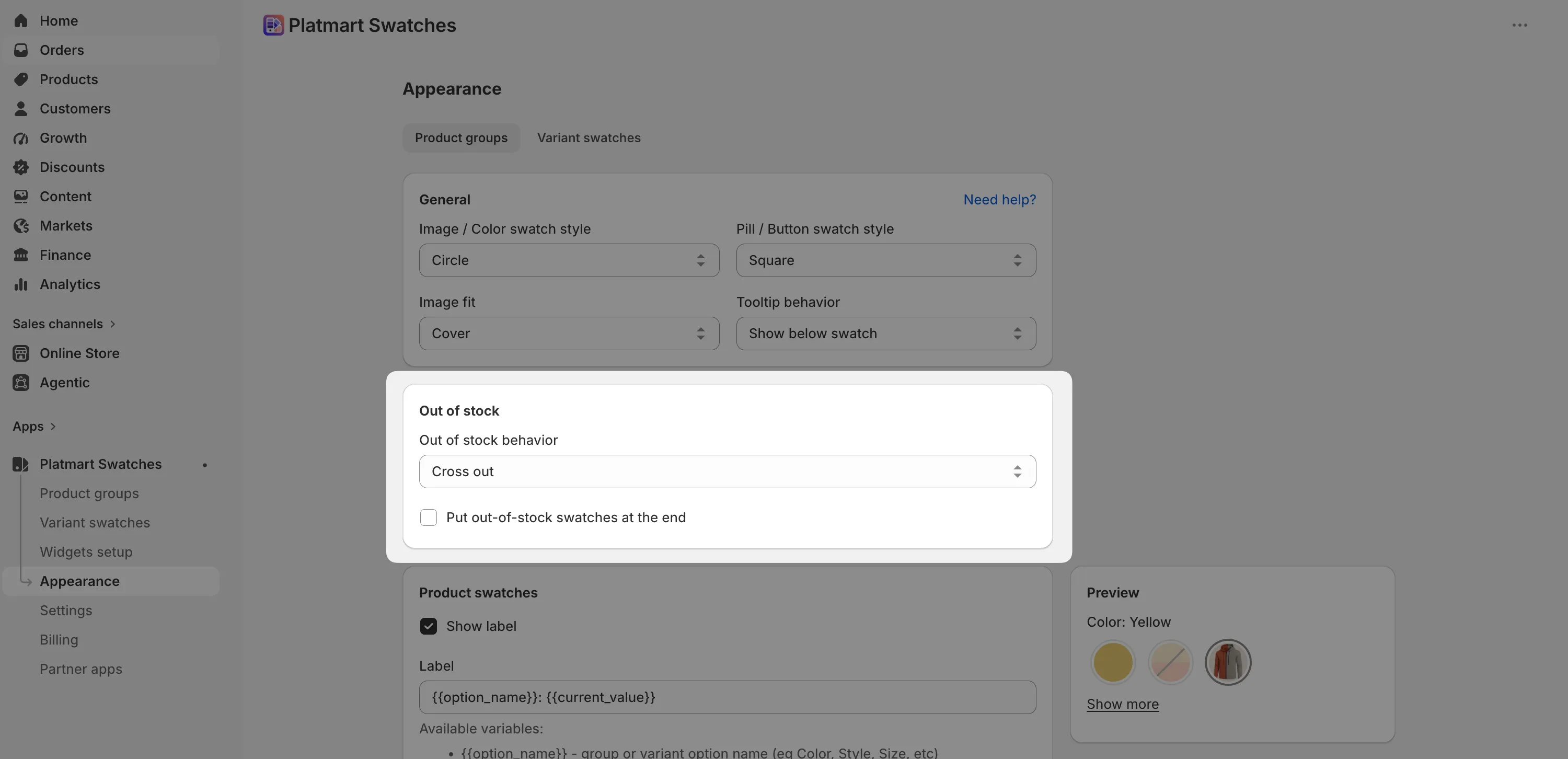
Set Out of stock behavior to one of:
| Option | What shoppers see |
|---|---|
| Show normally | No special styling - the swatch looks in stock |
| Cross out | A line through the swatch, still clickable (default) |
| Cross out and disable | A line through the swatch, not clickable |
| Disable | Greyed out and not clickable, no line |
| Hide | The swatch is removed entirely |
Turn on Put out-of-stock swatches at the end to push sold-out swatches to the back of the list, whichever style you pick.
Out-of-stock variant swatches
Section titled “Out-of-stock variant swatches”Variant swatches have their own out-of-stock styling, on the Appearance page under the Variant swatches tab.
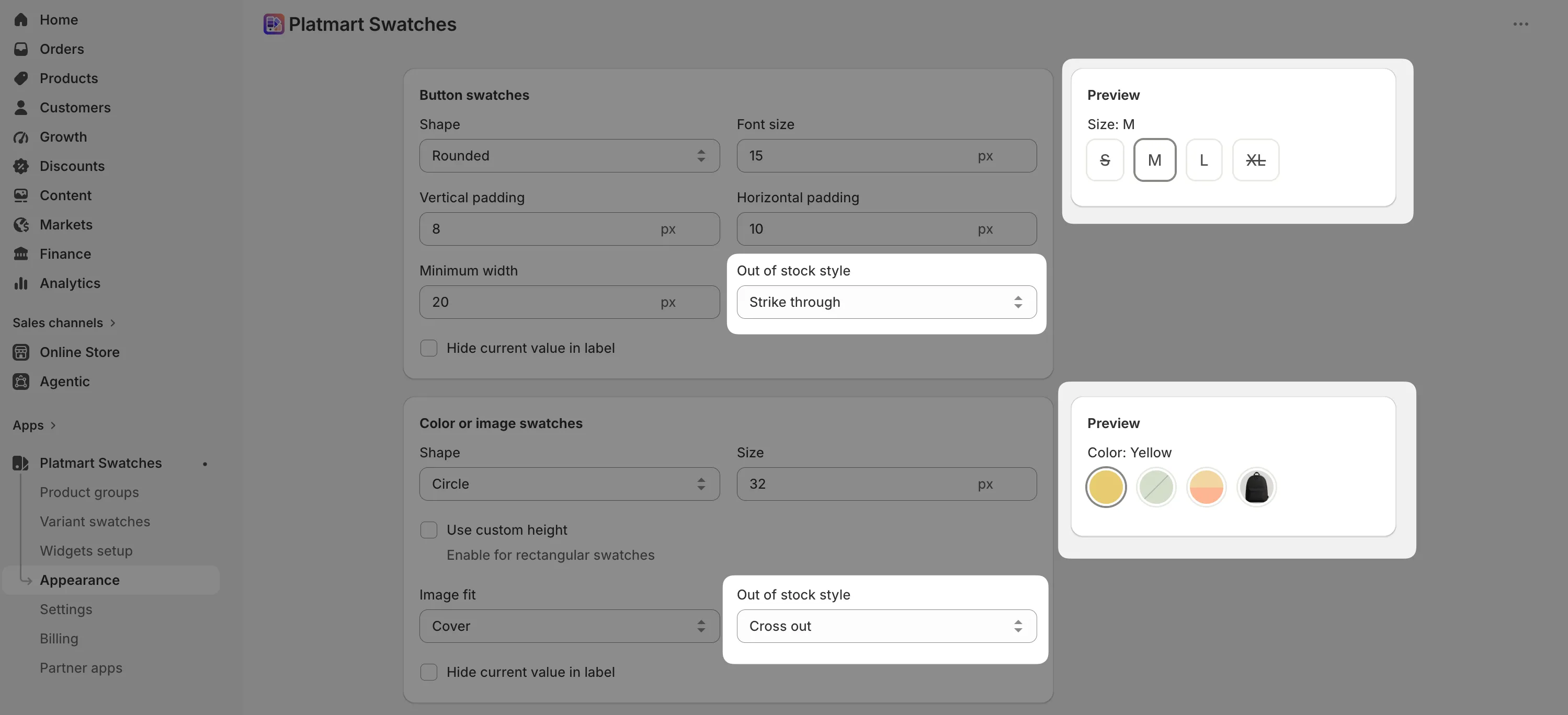
- Button swatches can show normally, with a strike through, or crossed out.
- Color and image swatches can show normally or crossed out.
You can also hide out-of-stock options on single-option products, and sort unavailable variants to the end. See styling variant swatches for the full set of appearance controls.
Hide inactive products
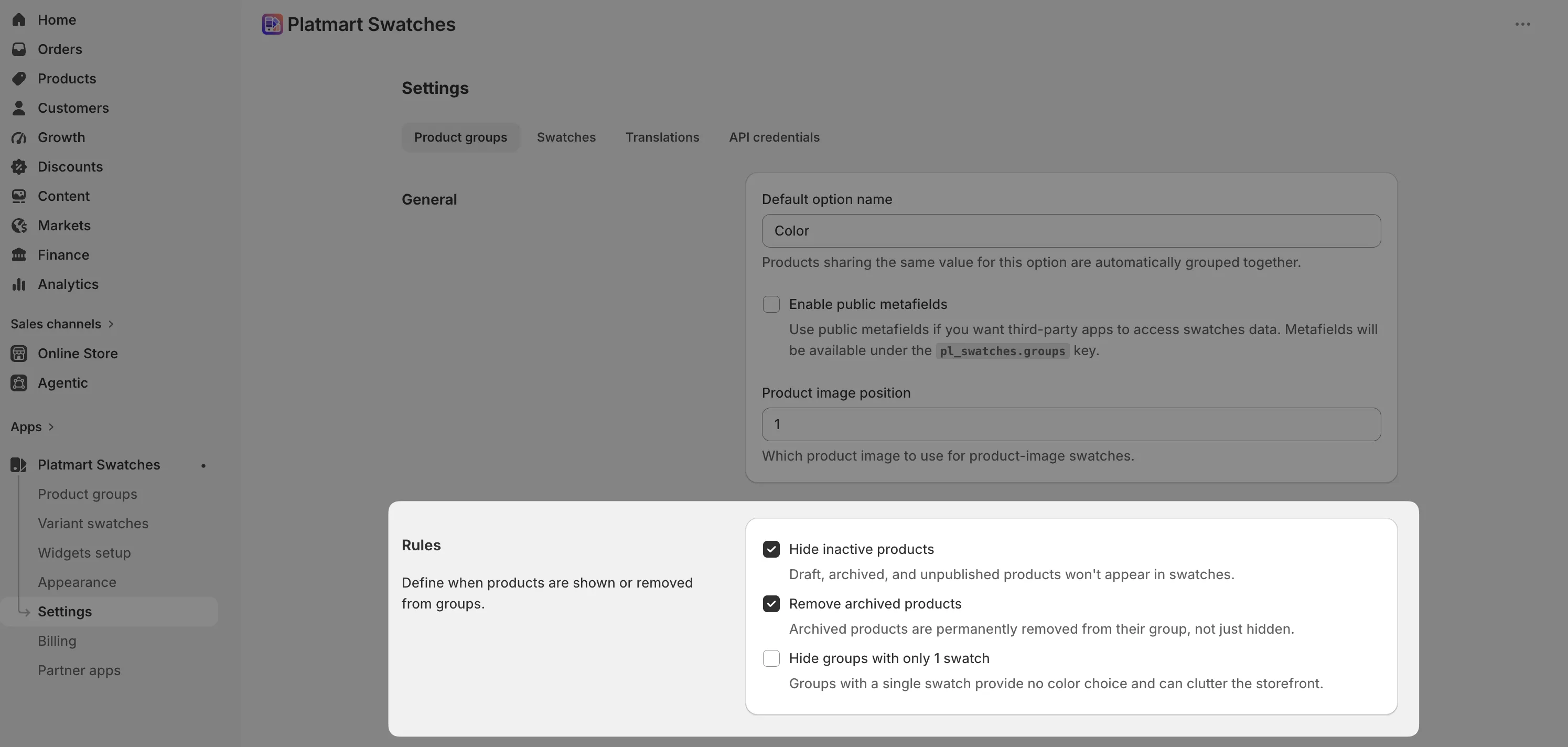
Section titled “Hide inactive products”The app can drop swatches for products that aren’t live. Go to Settings > Product groups, and in the Rules card turn on Hide inactive products. Draft, archived, and unpublished products then stop appearing in swatches.
The app watches for status changes, so a product that goes back to active reappears in its swatches on its own.
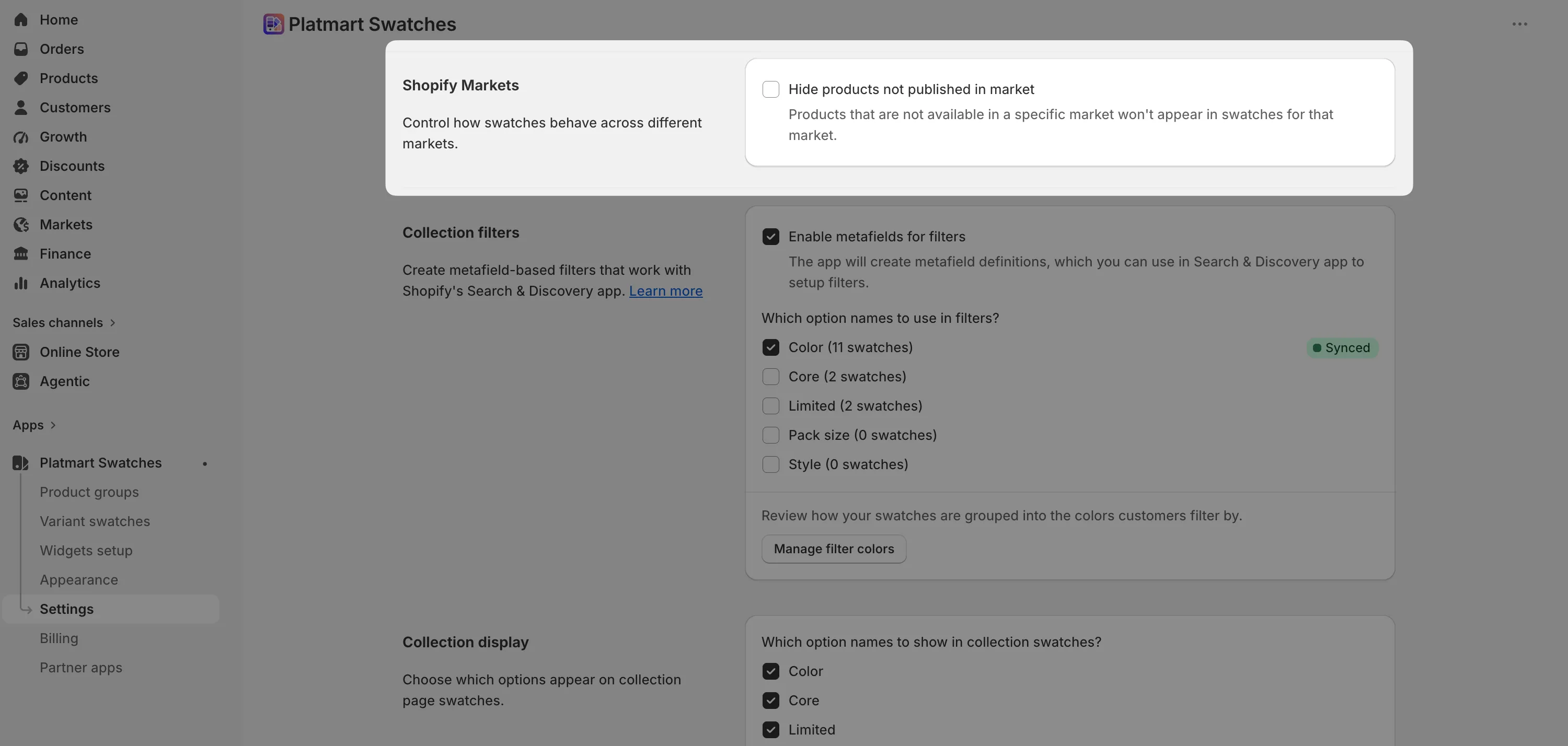
Hide products not published in a market
Section titled “Hide products not published in a market”If you sell across Shopify Markets, you can hide a product’s swatch in markets where it isn’t published. Go to Settings > Product groups, and in the Shopify Markets card turn on Hide products not published in market.