
Bulk edit market prices
By default, Shopify converts your prices into each market’s currency automatically. To control what customers in a specific market actually pay, you override prices with a price list - and the app edits those price lists in bulk. Shopify Markets editing requires the Premium plan.
Here’s a market price list reset, end to end:
Create a market price task
Section titled “Create a market price task”-
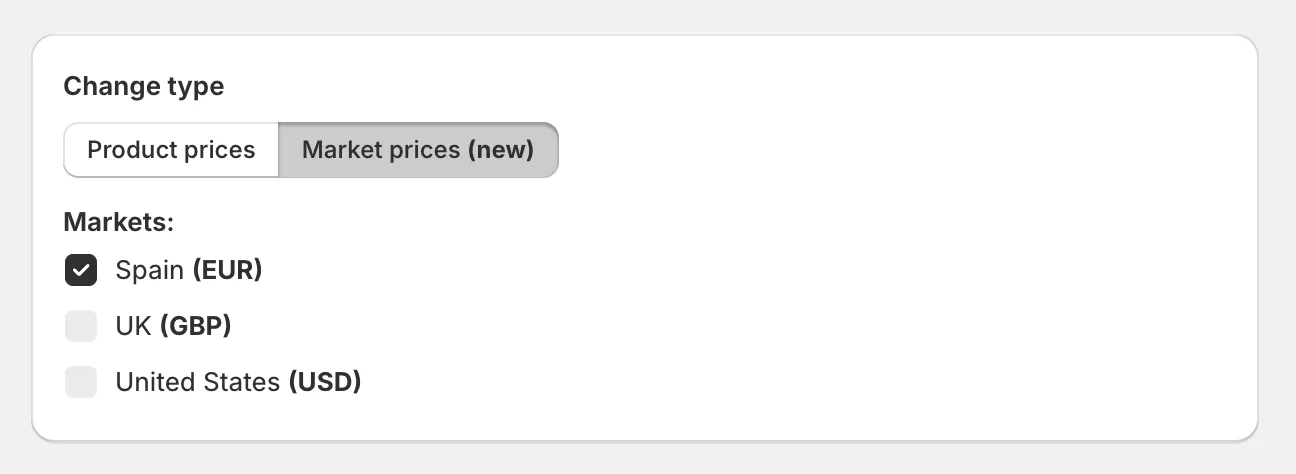
Click Create task and switch the change type to Market prices.
-
Select the markets to edit.
-
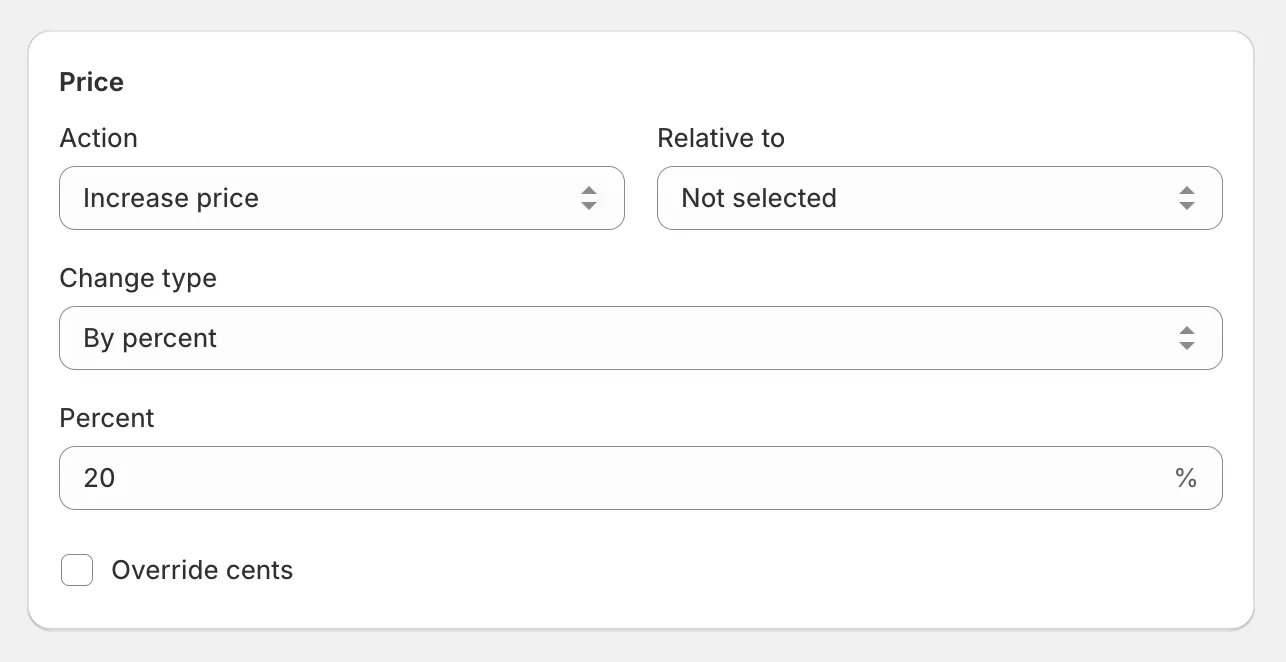
Configure the price actions, select the products under Apply to, and click Create task.
Price actions
Section titled “Price actions”- Don’t change price
- Increase price / Decrease price - by a percent or amount.
- Set new price - one value for every selected variant in the market.
- Set to compare at price - restore the original price before a discount.
- Reset fixed prices - remove fixed prices and compare at prices from the market’s price list, so prices return to automatic conversion.
Compare at price actions
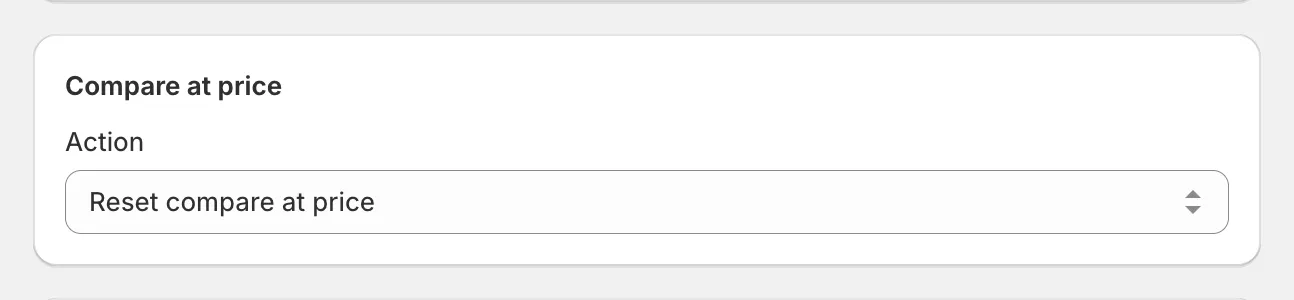
Section titled “Compare at price actions”Because of a Shopify API constraint, compare at price in a market can only change together with the price - pick a price action other than Don’t change price when editing it.
- Don’t change compare at price
- Increase compare at price / Decrease compare at price - by a percent or amount.
- Set new compare at price
- Set to price - show the current price crossed out, for discounts.
- Reset compare at price
Check the result
Section titled “Check the result”Two places to verify market prices:
- Your storefront, switched to the market’s country.
- Shopify admin: go to Markets > Catalogs and open the market’s catalog.
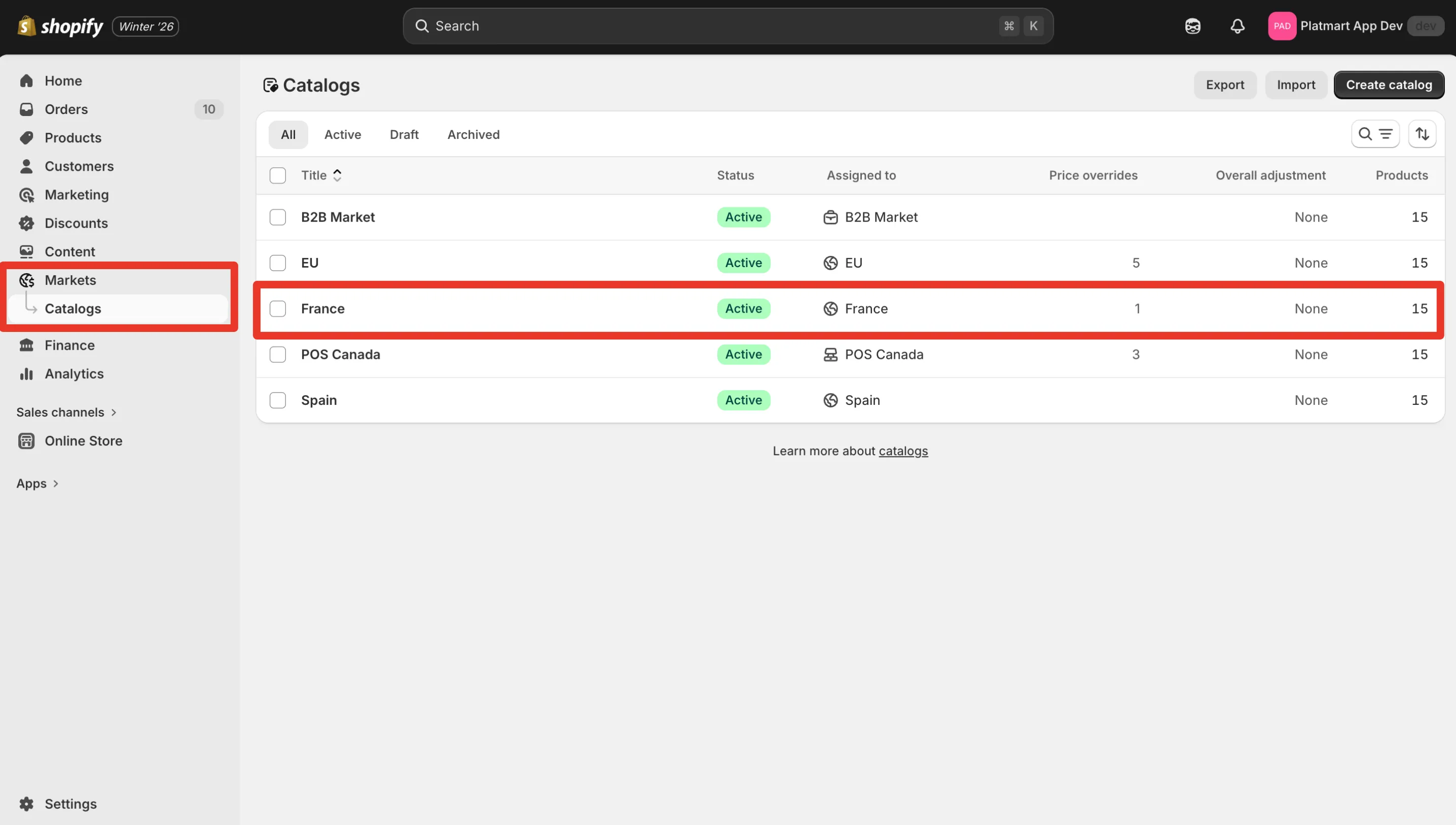
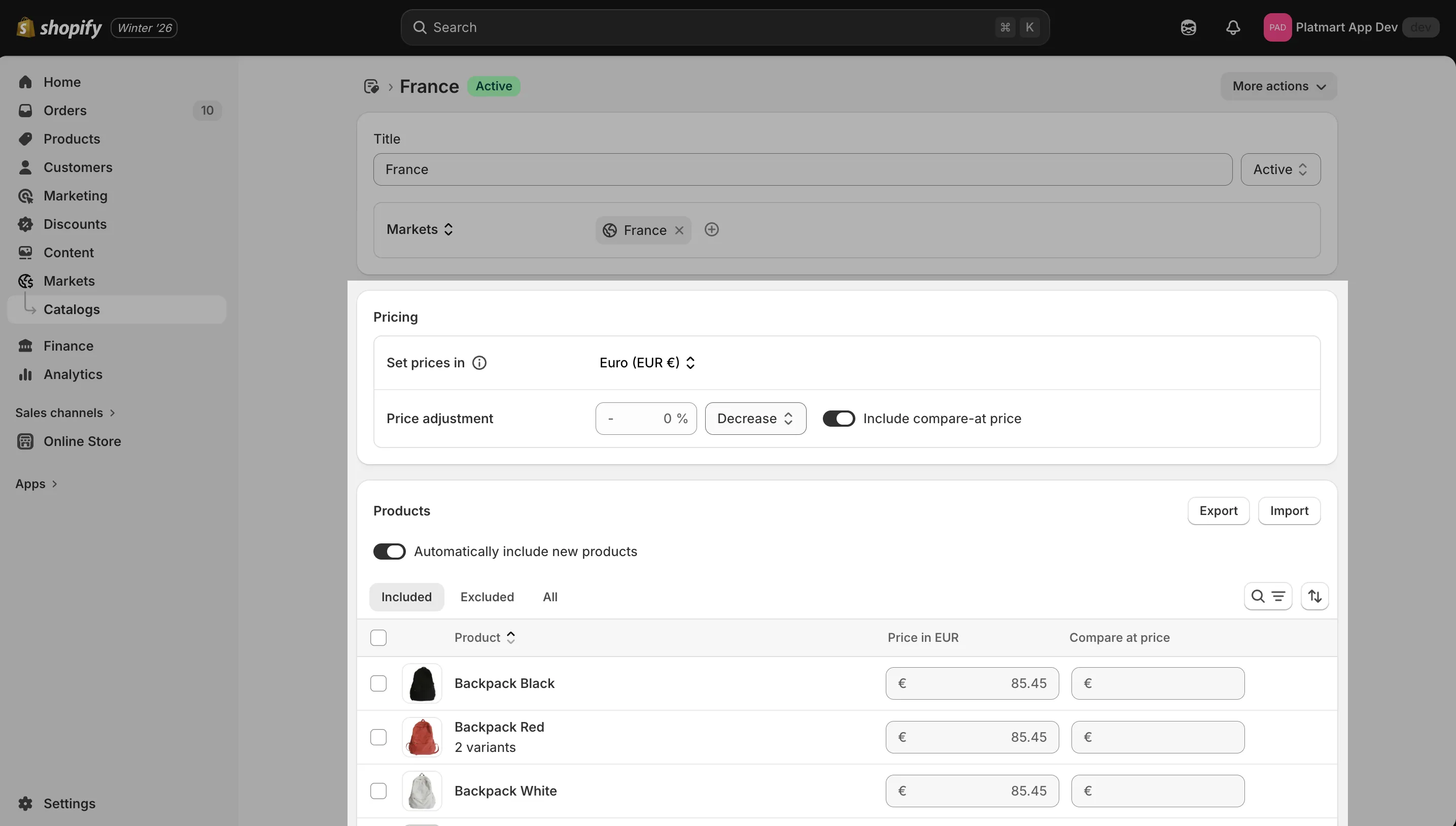
Compare at price doesn’t appear in the market settings - Shopify only shows it on the storefront.
To run a temporary promotion in specific markets instead, see run a sale on specific markets.