Manage sales
Everything you can do with a sale after creating it: stop it at any stage, reuse it, or tidy up the list.
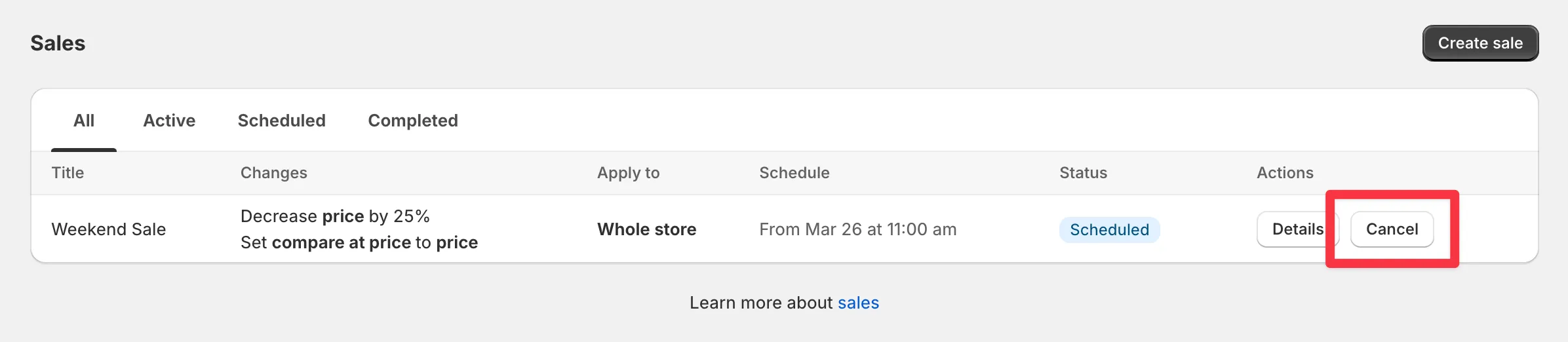
Cancel a scheduled sale
Section titled “Cancel a scheduled sale”Changed your mind before the sale started? Click Cancel next to the scheduled sale. Nothing has been applied yet, so there’s nothing to restore.
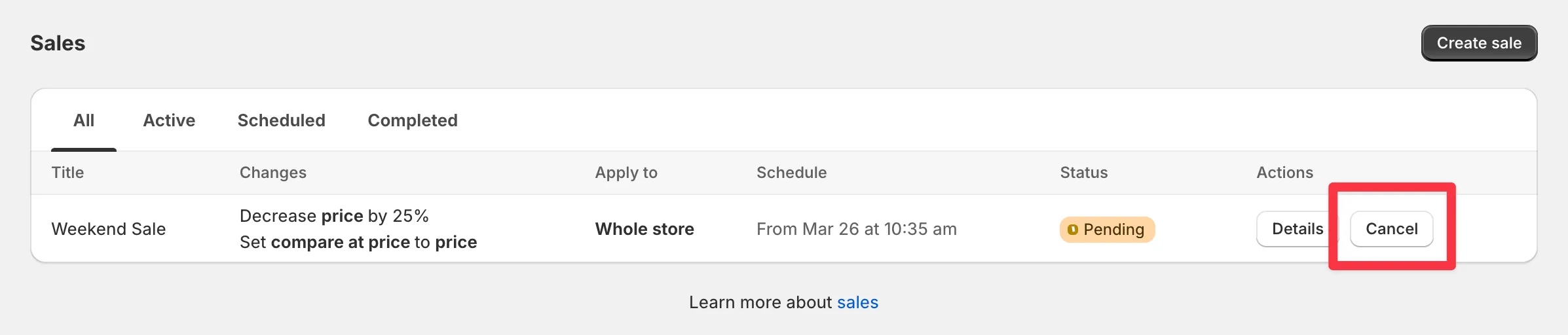
Cancel a pending or applying sale
Section titled “Cancel a pending or applying sale”A sale that has started with Pending or Applying status can still be canceled. The app rolls back the price changes it already applied.
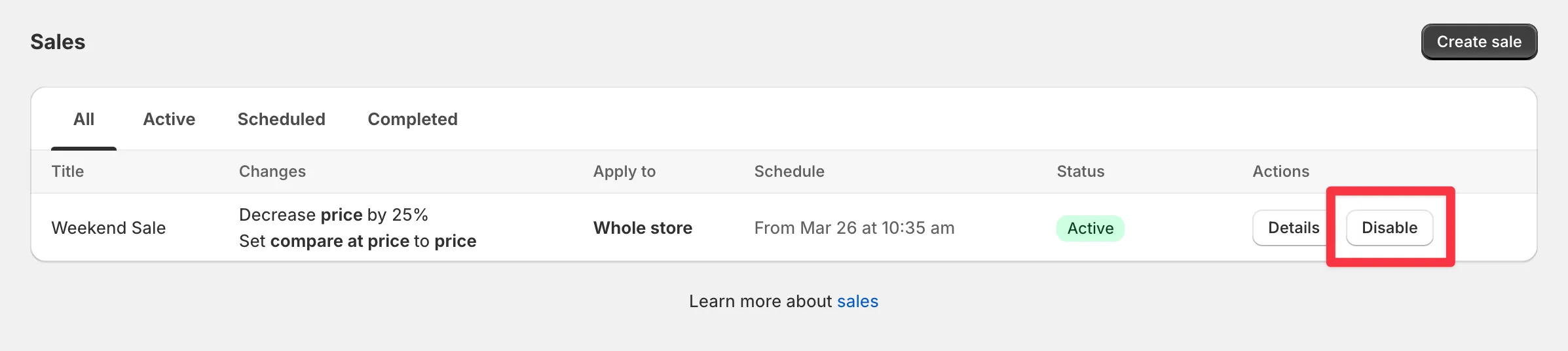
Disable an active sale
Section titled “Disable an active sale”An active sale ends automatically at its end date and time, if one is set. To end it early, click Disable next to the sale. Original prices are restored, and any tag automation is reversed.
Duplicate a sale
Section titled “Duplicate a sale”To rerun a promotion or use one as a template:
-
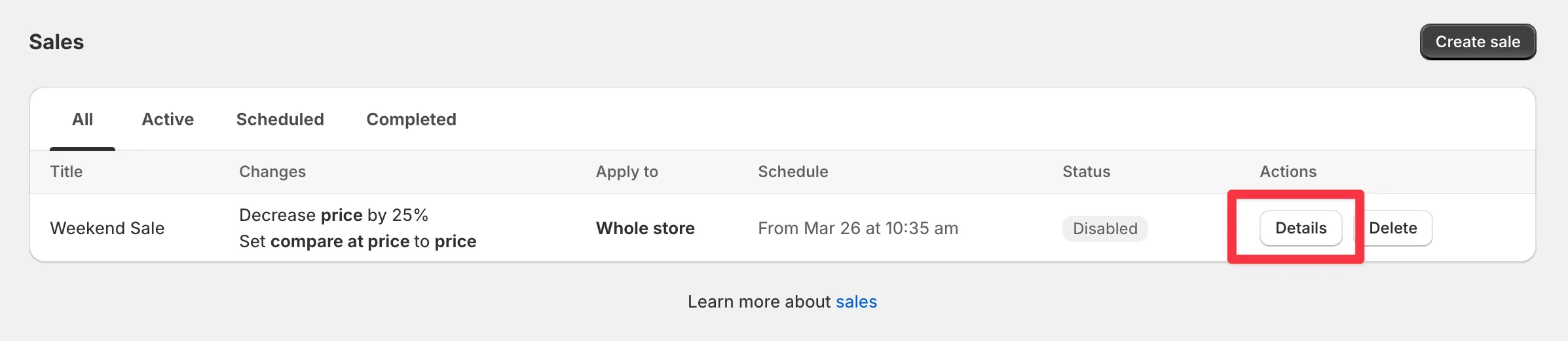
Open the sale’s Details.
-
Click Duplicate.
-
Adjust the parameters and create the sale.
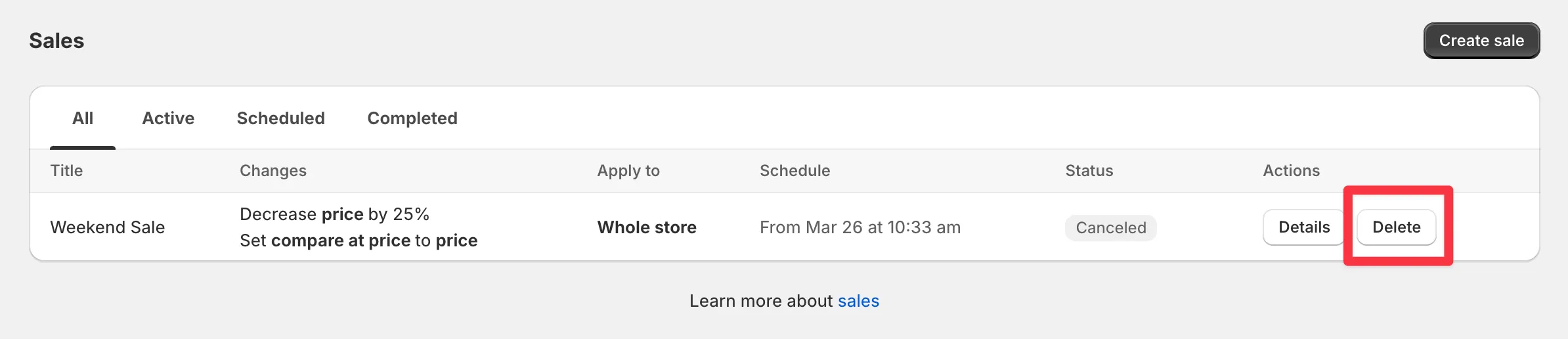
Delete a sale
Section titled “Delete a sale”Only completed or canceled sales can be deleted - click Delete next to the sale.