
Using tasks
Tasks make one-time bulk price changes. The change stays until you change it again or roll it back. Typical tasks:
- Increase price and compare at price for the whole store by 10%.
- Set a 75% margin on products with cost per item filled.
- Decrease prices for selected collections and override cents to .99.
- Restore original prices for products on sale.
For temporary discounts, use sales instead - they restore prices automatically when they end.
Change type
Section titled “Change type”By default, a task changes product prices - the ones on your primary market and any market without fixed prices. To edit price lists for specific Shopify Markets instead, switch to the Market prices tab (Premium plan, see Shopify Markets).

Pick what happens to the selling price:
- Don’t change price - leave it alone.
- Increase price - by a percent or amount.
- Decrease price - by a percent or amount.
- Set new price - one value for every selected variant.
- Set to compare at price - restore the original price before a discount.
- Set margin - calculate price from cost per item (Advanced plan or higher).
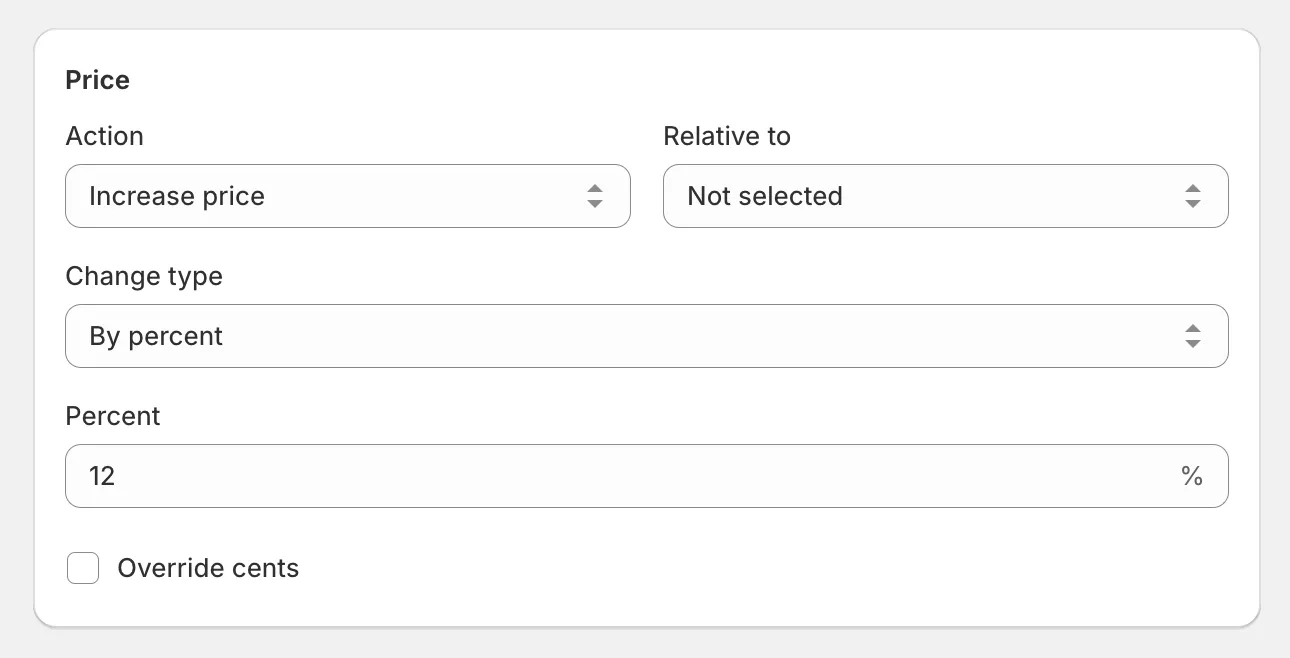
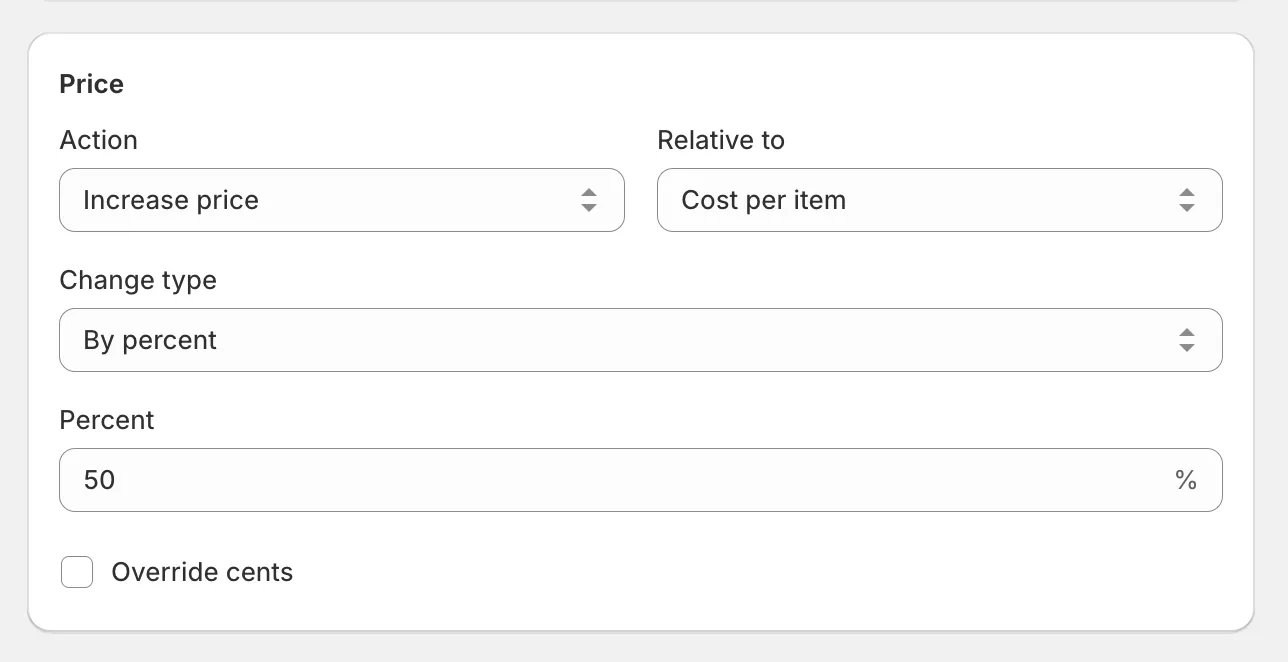
Increases and decreases can also be calculated relative to Cost per item for markup pricing (Advanced plan or higher):
Compare at price
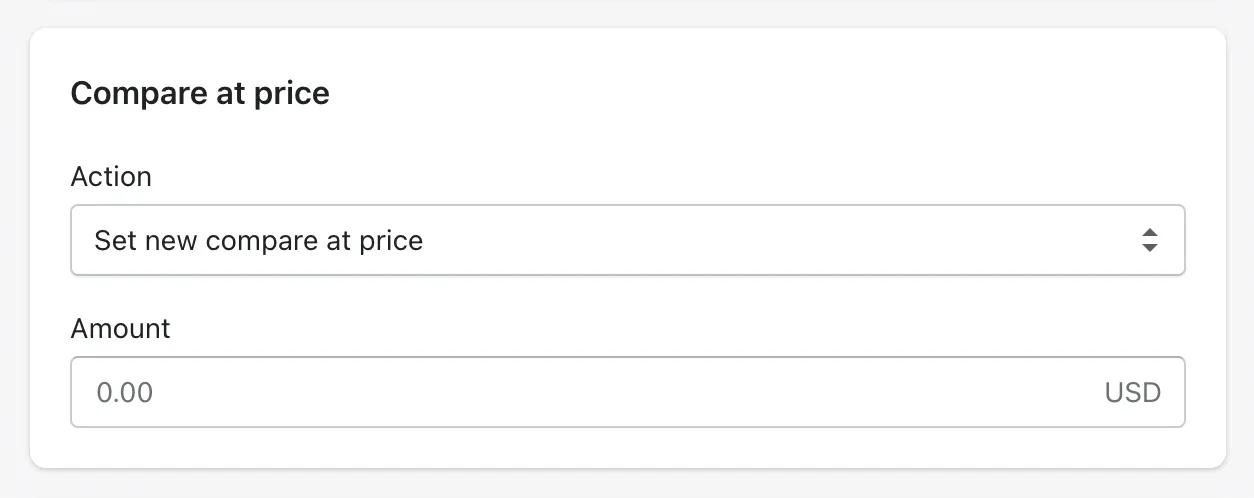
Section titled “Compare at price”Compare at price is the Shopify field that shows the crossed-out original price next to a discount:
Actions:
- Don’t change compare at price
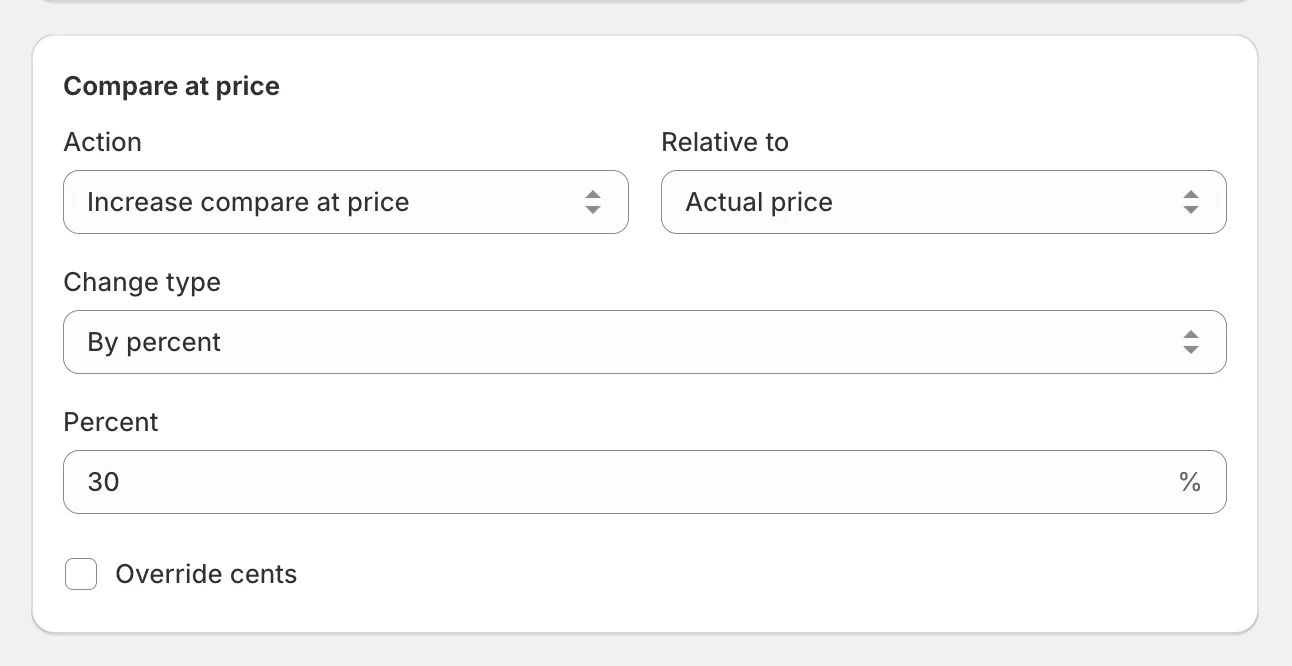
- Increase compare at price / Decrease compare at price - by a percent or amount, optionally relative to the actual price or cost per item.
- Set new compare at price
- Set to price - copy the current price into compare at price, useful right before a discount.
- Reset compare at price - remove the value so products no longer look discounted.
Cost per item
Section titled “Cost per item”Cost per item editing requires the Advanced plan or higher. Actions:
- Don’t change cost per item
- Increase cost per item / Decrease cost per item - by a percent or amount.
- Set new cost per item
- Reset cost per item - remove the value.
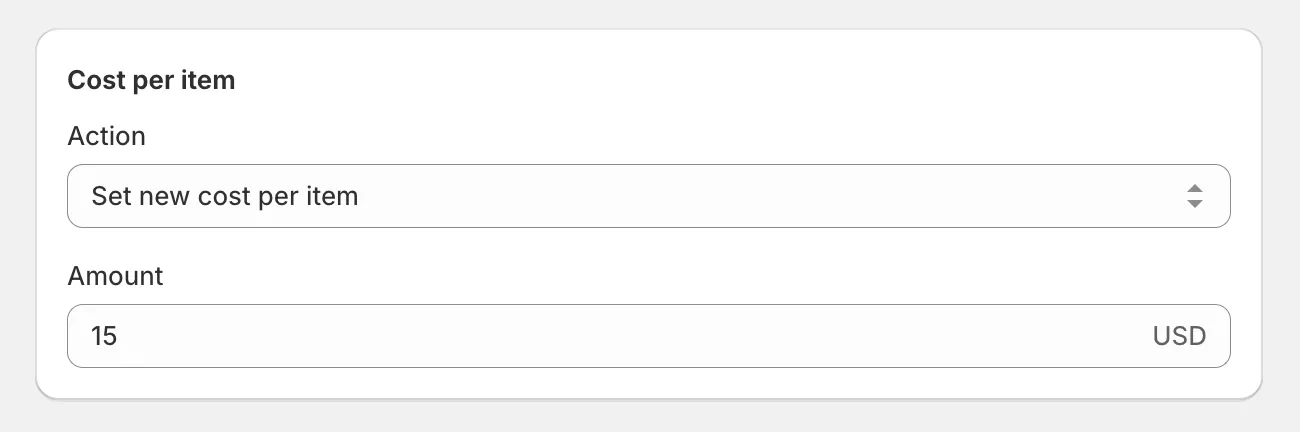
See edit cost per item for details.
Override cents
Section titled “Override cents”Price, compare at price, and cost per item all support cent overrides. Override with a value so every result ends in, say, .99:
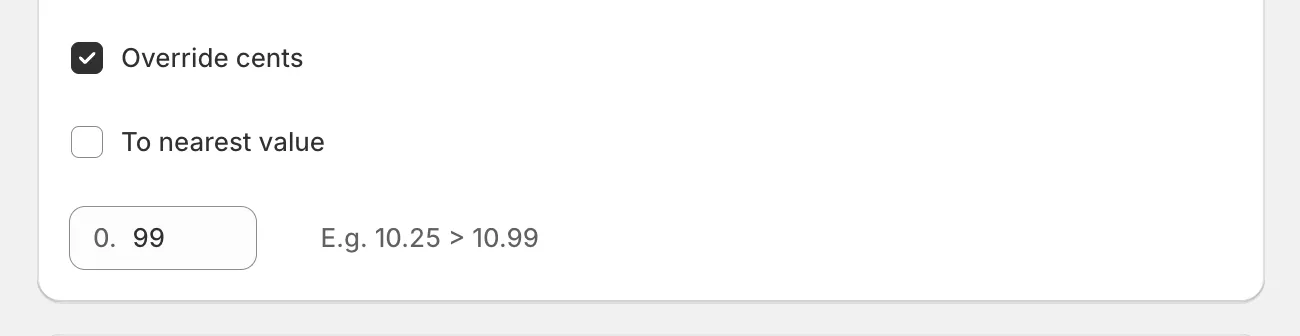
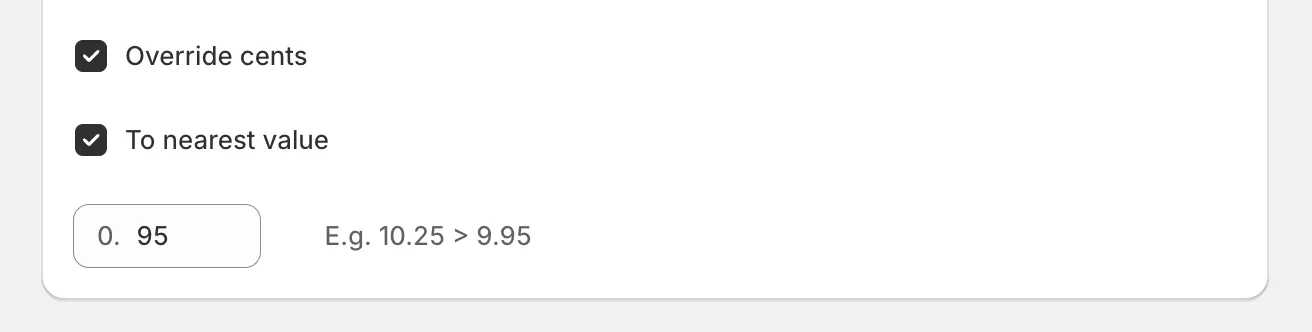
Or round to the nearest value to clean up amounts after percent changes:
Apply to
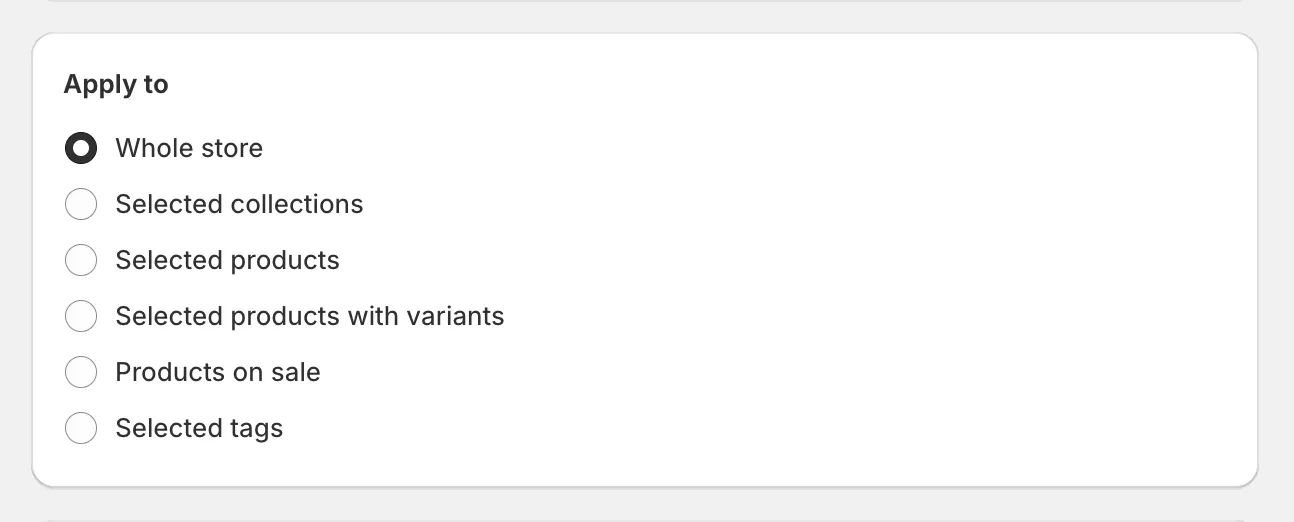
Section titled “Apply to”Choose which products the task touches:
- Whole store - every active product. Draft products are skipped unless you change Apply price changes to on the app’s Settings page.
- Selected collections - up to 100.
- Selected products - up to 100.
- Selected products with variants - specific variants only.
- Products on sale - only products with a compare at price set higher than price.
- Selected tags
To target products by price range, apply the task to an automated collection with a price condition - see target products by price.
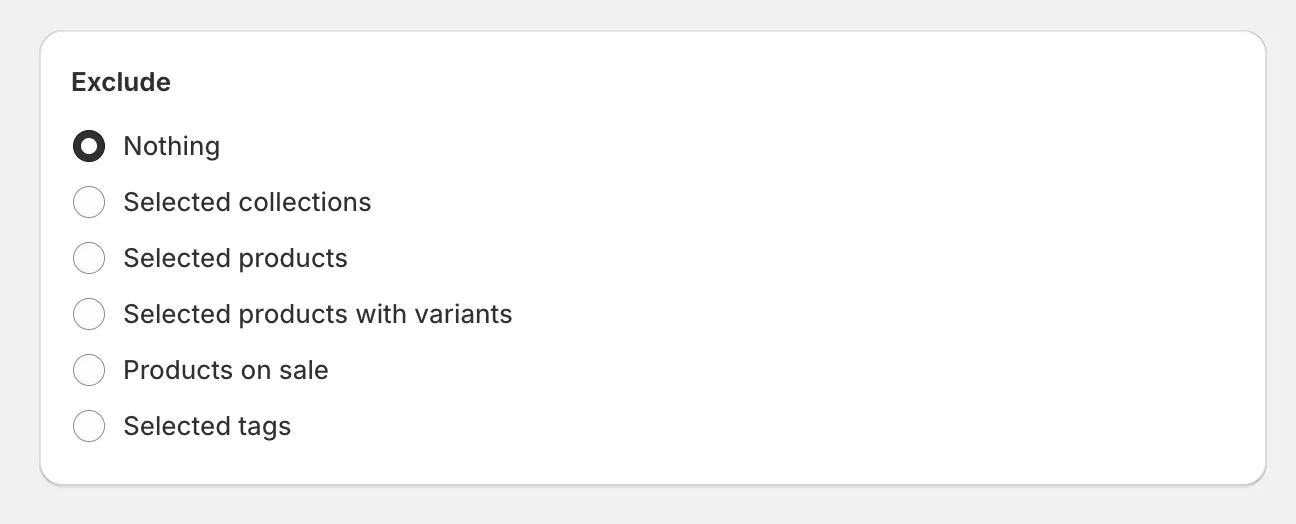
Exclude
Section titled “Exclude”Skip products that match the selection but shouldn’t change: selected collections, products, variants, tags, or products already on sale. The exclude discounted products options work the same way in tasks.
While the task applies
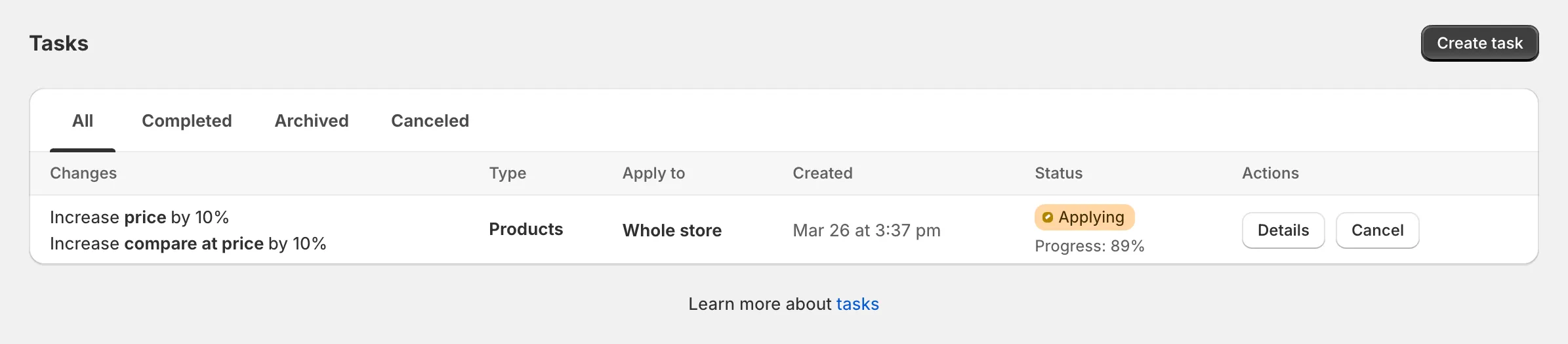
Section titled “While the task applies”Create the task and the app starts working through your products. Speed depends on your Shopify plan - see how long price changes take. You can pause, resume, or cancel a running task.
After the task completes
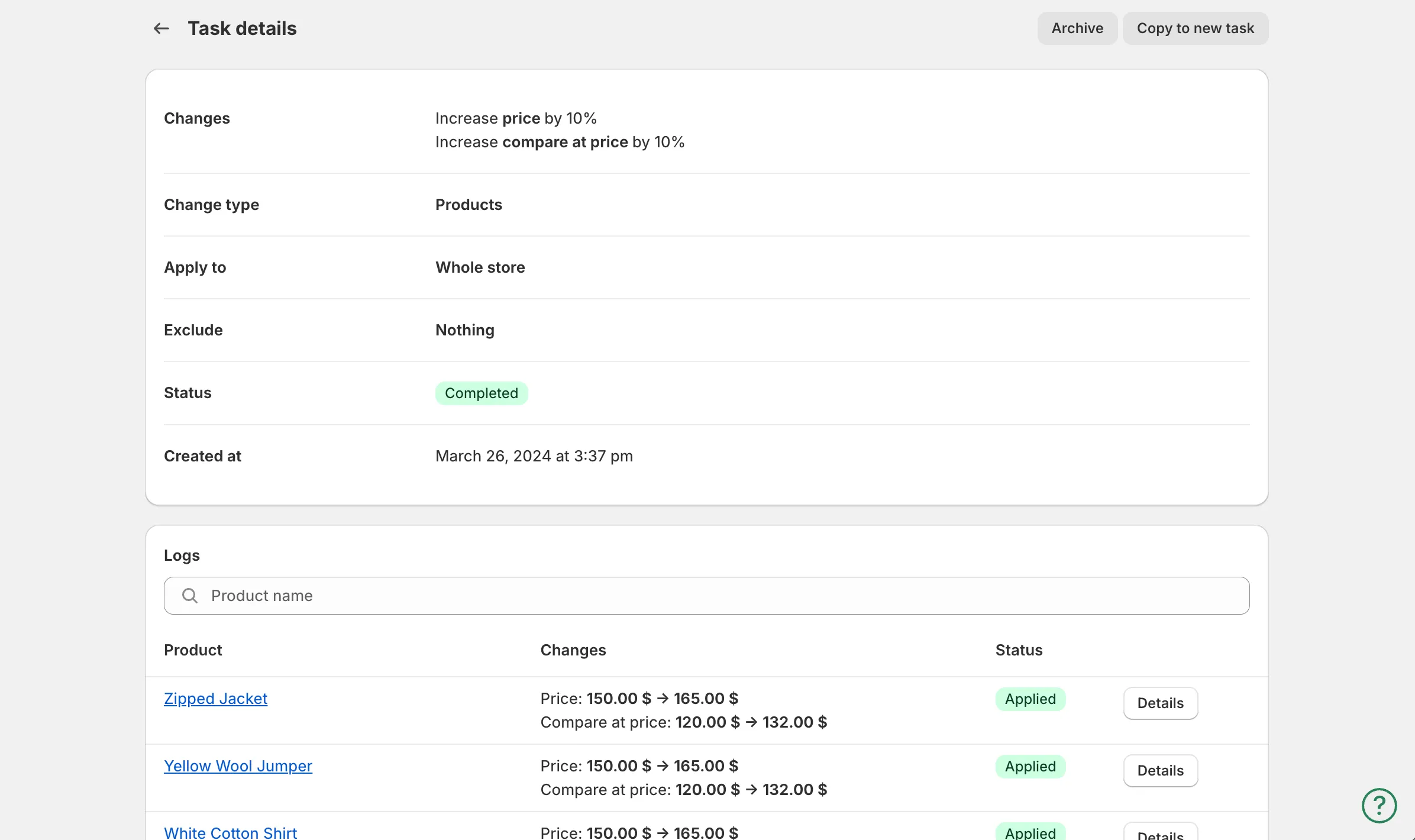
Section titled “After the task completes”Open Details to see the full change log - every variant with its old and new values, searchable.
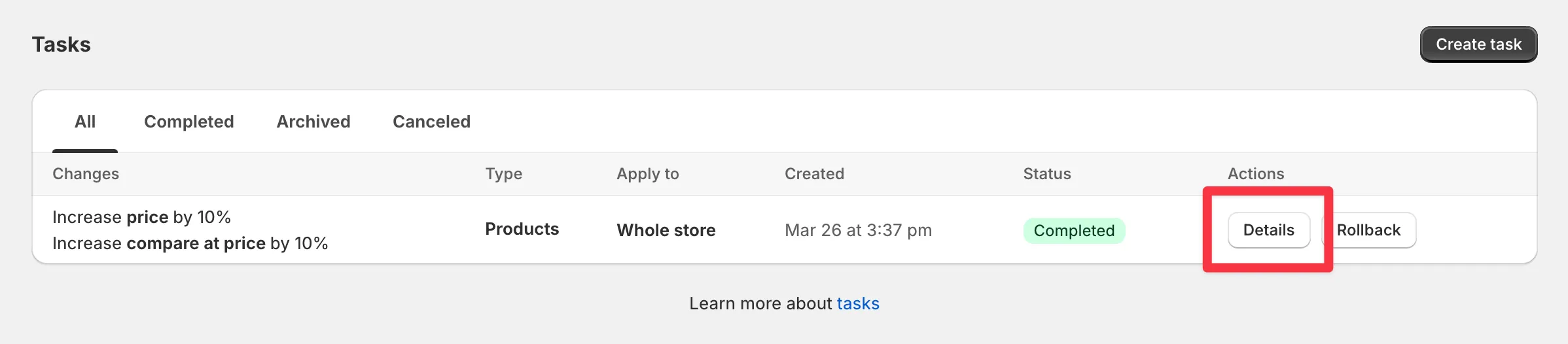
If anything looks off, rollback restores the original prices.
Keep prices from being overridden
Section titled “Keep prices from being overridden”On the Premium plan, the Advanced card on the task form has an Automatically re-apply price changes (every hour) option. After the task completes, the app re-applies its prices every hour - useful when a third-party app keeps overwriting them. Works for tasks with up to 10,000 price changes.
Next steps
Section titled “Next steps”- Increase or decrease prices
- Set discount prices
- Rollback changes
- Manage tasks - cancel, pause, duplicate, archive, delete.