
Increase or decrease prices
To raise or lower prices in bulk, create a task with an increase or decrease action. Each of the three price fields has its own action, so one task can move all of them together. Here’s a store-wide 10% increase of price and compare at price, end to end:
Increase or decrease price
Section titled “Increase or decrease price”- Click Create task.
- Under Price, select Increase price or Decrease price.
- Enter a percent or a fixed amount.
- Under Apply to, select the products, then click Create task.
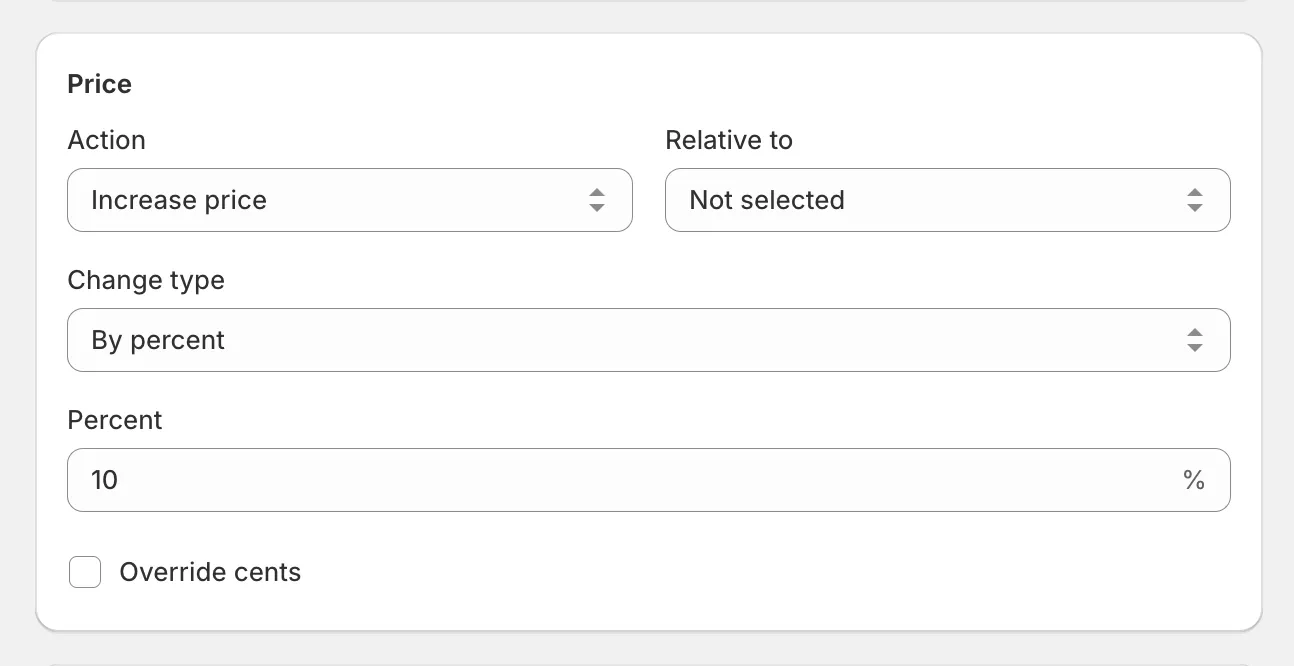
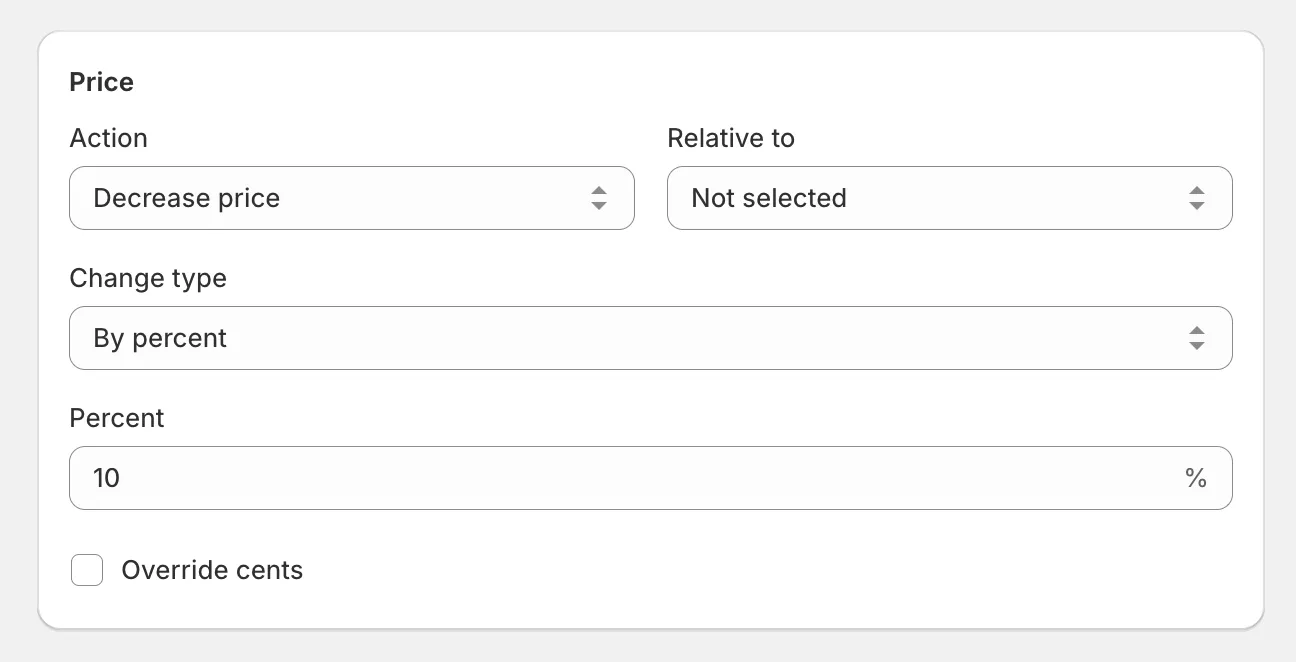
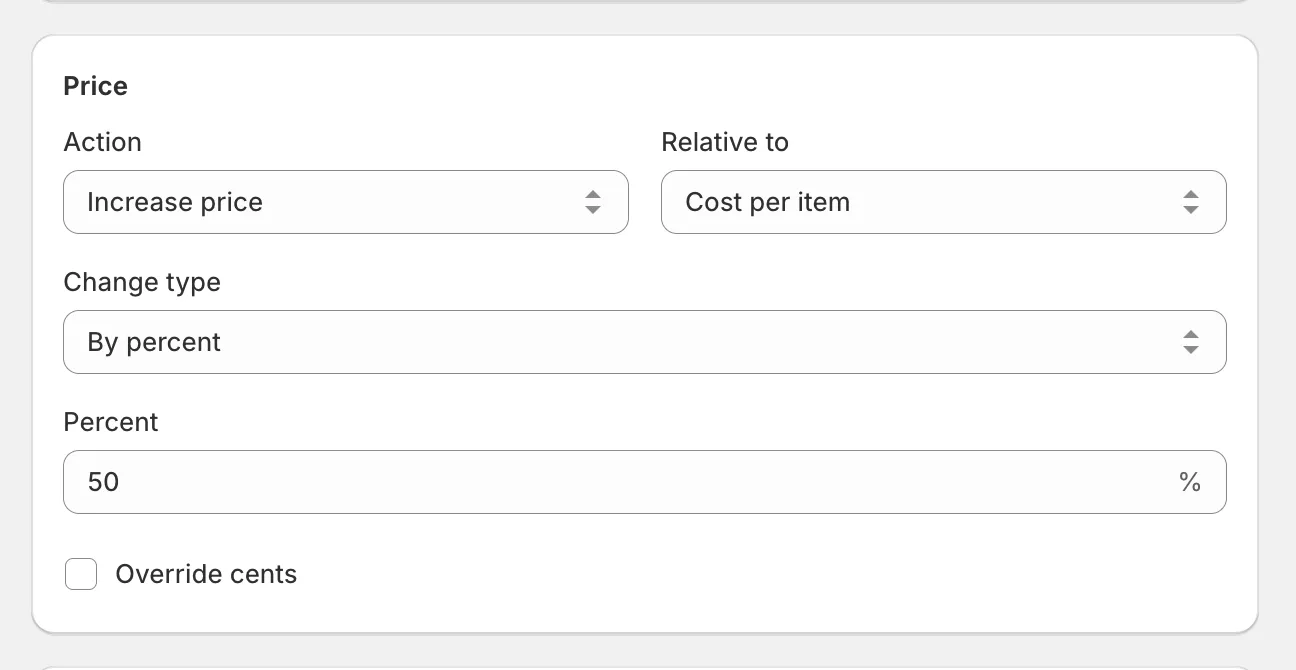
On the Advanced plan or higher, increases can also be calculated relative to Cost per item - that’s how you set markup pricing:
And here’s a decrease with a cent override, applied to selected collections:
Increase or decrease compare at price
Section titled “Increase or decrease compare at price”Select Increase compare at price or Decrease compare at price and enter a percent or amount:
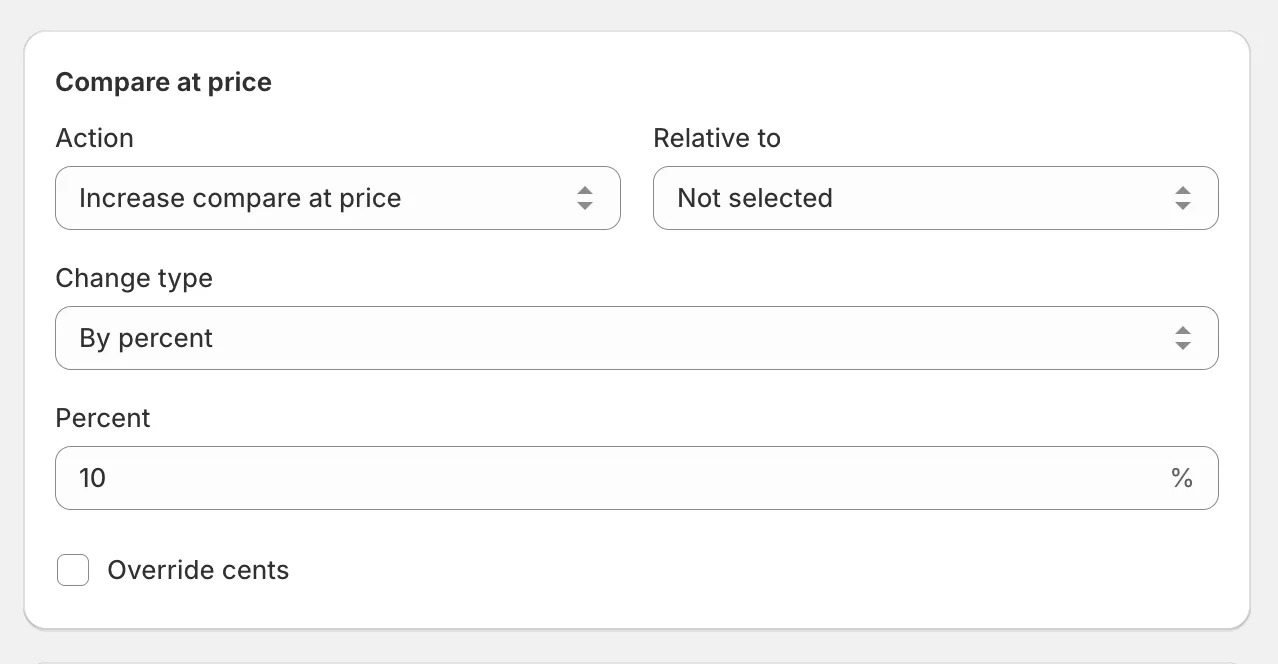
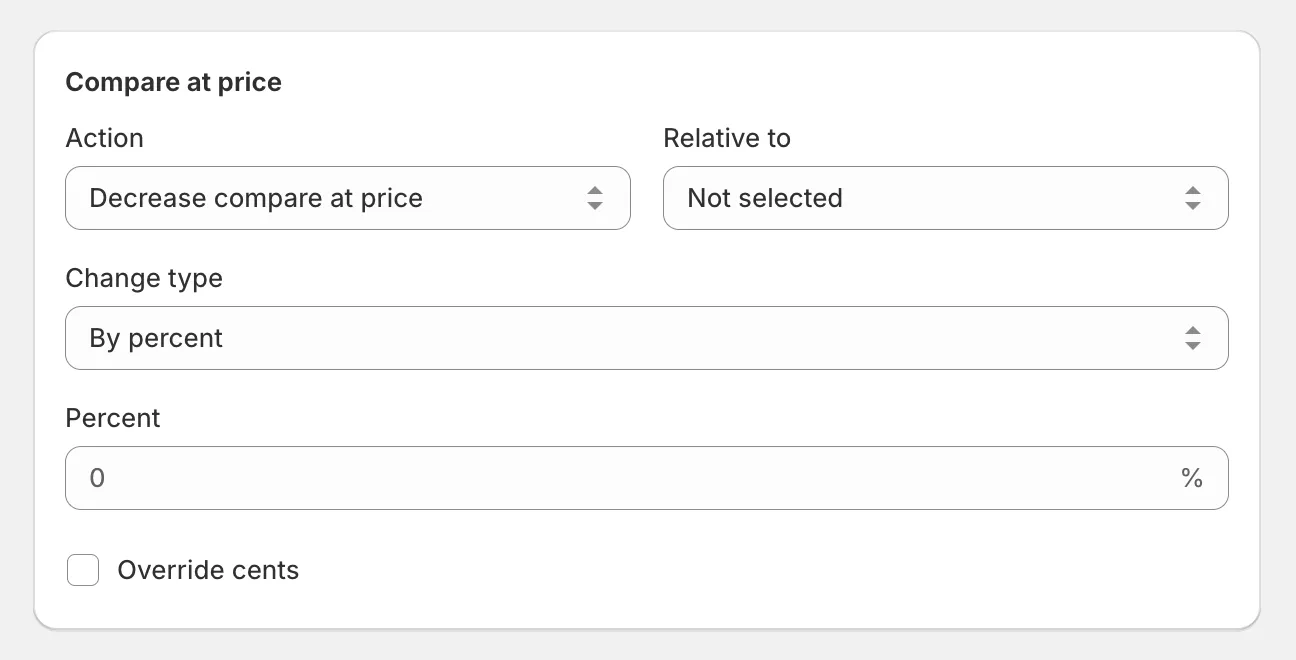
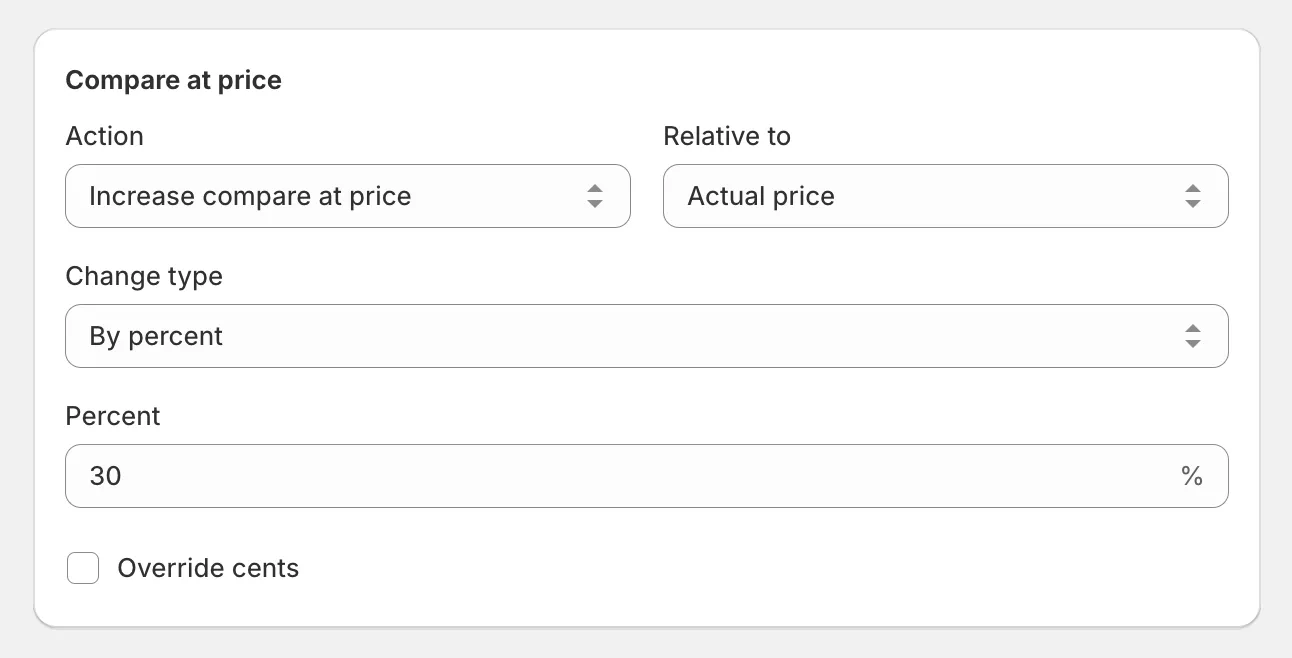
The change can be relative to the Actual price, or to Cost per item on the Advanced plan or higher:
Increase or decrease cost per item
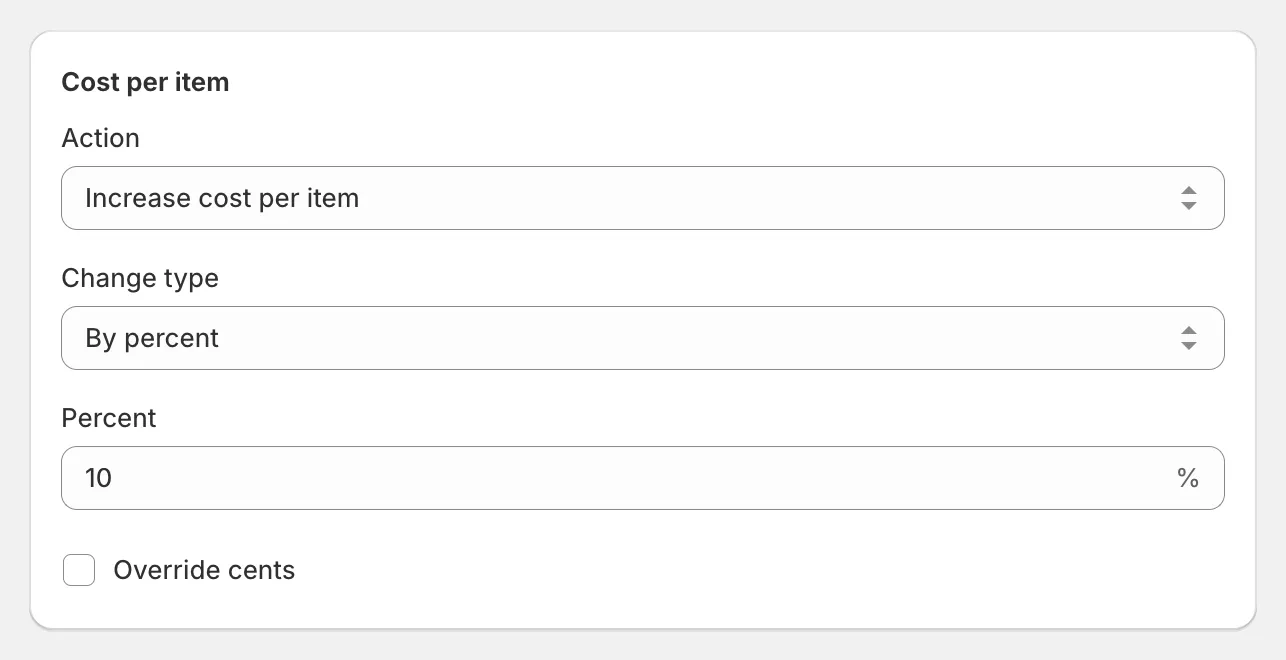
Section titled “Increase or decrease cost per item”Cost per item editing requires the Advanced plan or higher. Select Increase cost per item or Decrease cost per item and enter a percent or amount:
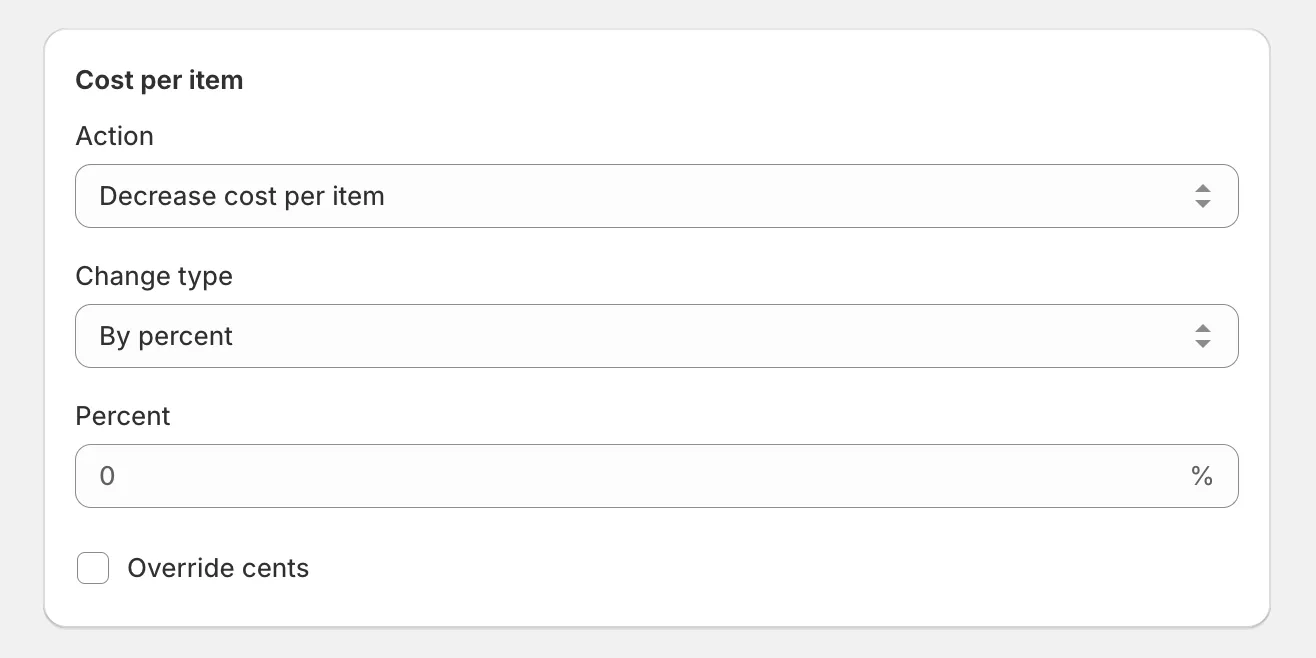
After a percent change, prices can end up uneven. Use Override cents in the same task to land on clean values like .99 or .00.
Next steps
Section titled “Next steps”- Want customers to see a crossed-out original price? See set discount prices.
- Changed your mind after the task ran? Rollback restores the original prices.