
Set new prices
To give every selected variant the same value, create a task with a Set new action. Unlike increase or decrease, this overwrites whatever is there now.
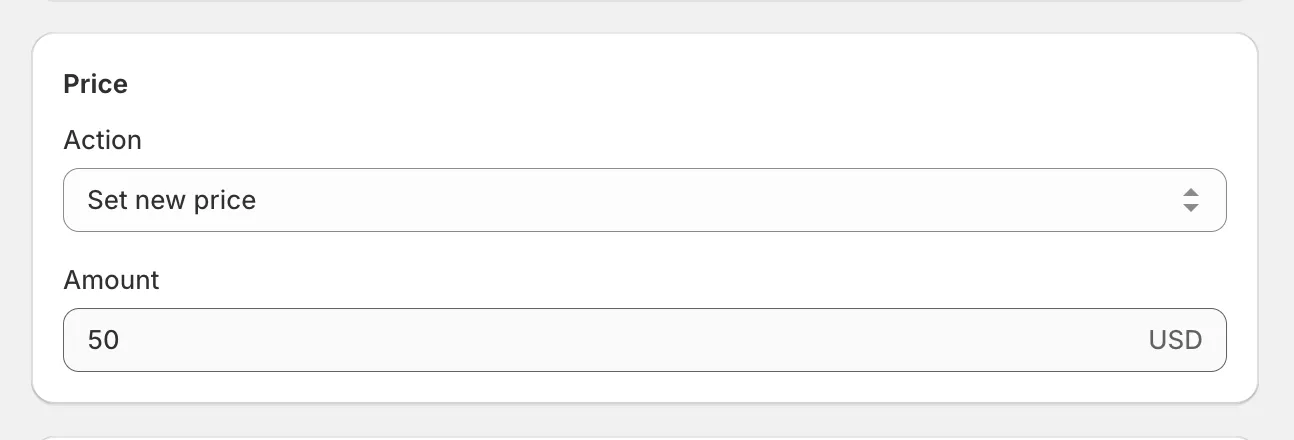
Set a new price
Section titled “Set a new price”- Click Create task.
- Under Price, select Set new price and enter the amount.
- Under Apply to, select the products, then click Create task.
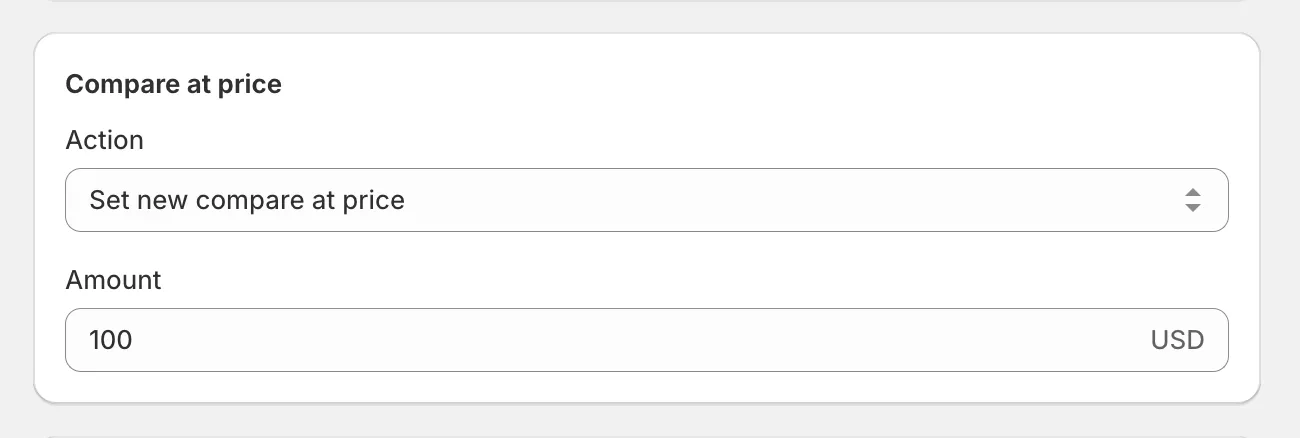
Set a new compare at price
Section titled “Set a new compare at price”Select Set new compare at price and enter the amount. For the discount to show on your storefront, the value must be higher than the price.
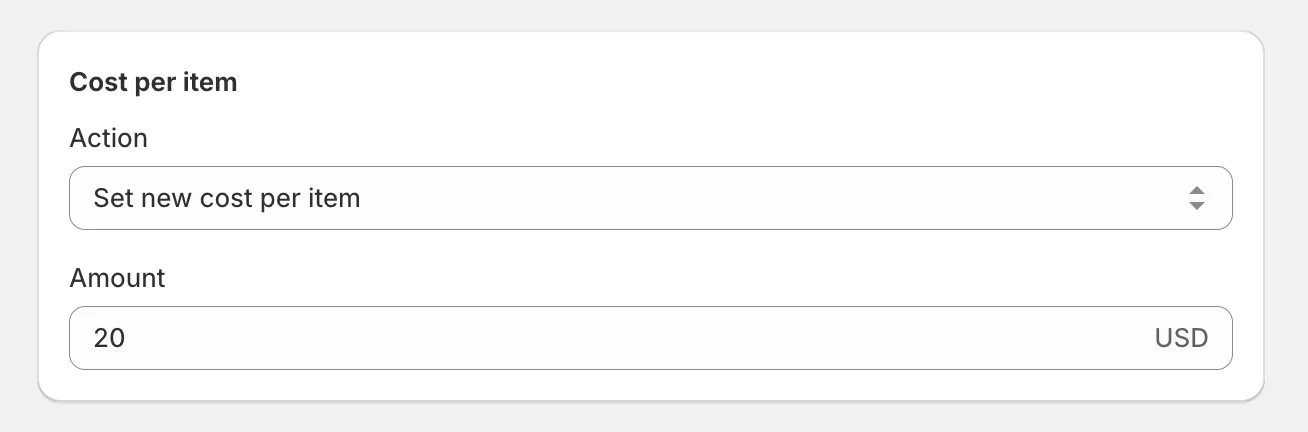
Set a new cost per item
Section titled “Set a new cost per item”Cost per item editing requires the Advanced plan or higher. Select Set new cost per item and enter the amount.
Since one value applies to everything the task touches, narrow Apply to carefully - selected products, variants, or a collection rather than the whole store. If the result isn’t what you expected, rollback restores the previous values.