Manage tasks
Everything you can do with a task after creating it: stop it mid-run, reuse it, or tidy up the list.
Cancel a running task
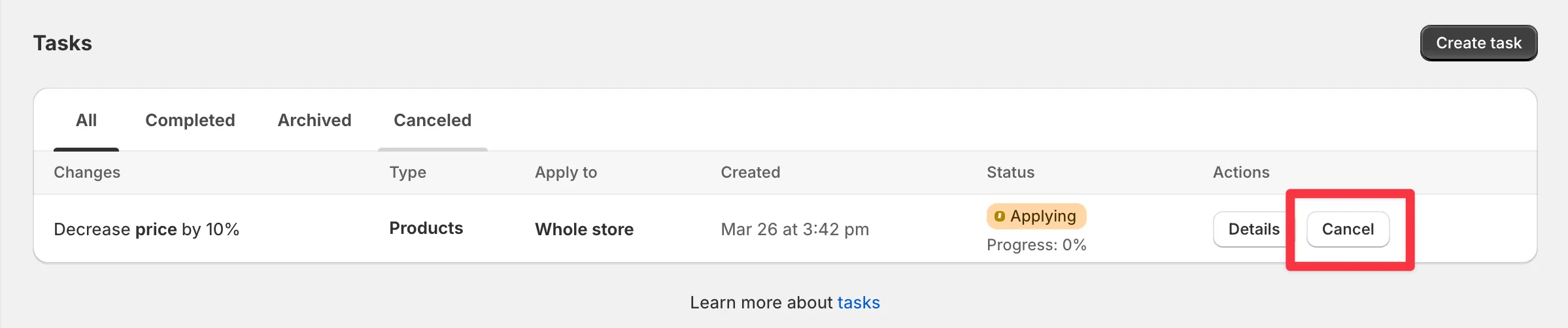
Section titled “Cancel a running task”A task with Pending or Applying status can still be canceled. The app rolls back the price changes it already applied, so your store returns to its pre-task prices.
Click Cancel next to the task and confirm.
Pause and resume
Section titled “Pause and resume”A running task can be paused and resumed later - useful if you want to slow things down during peak hours. The task picks up where it left off.
Duplicate a task
Section titled “Duplicate a task”To rerun a task or use it as a starting point:
-
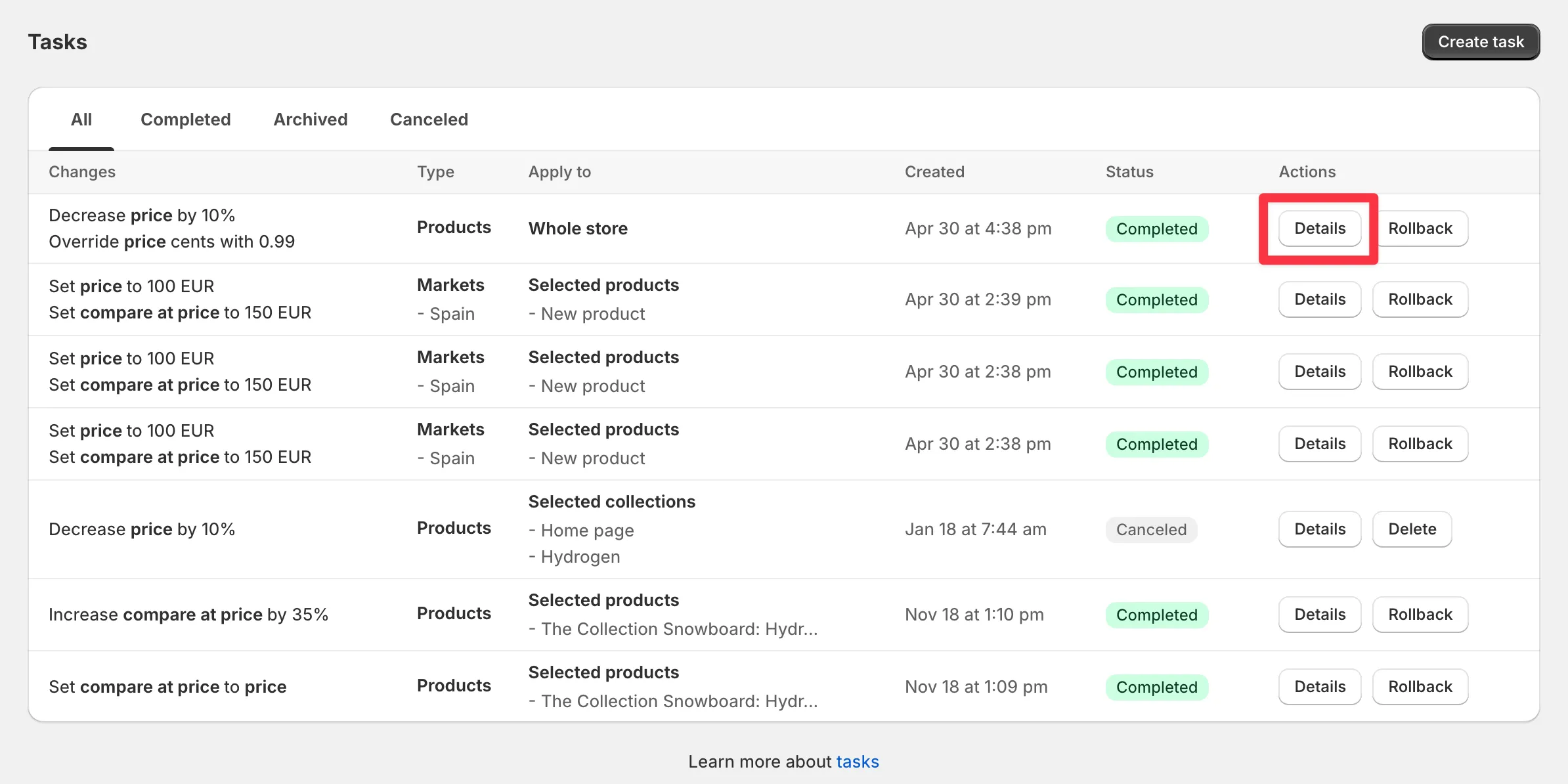
Open the task’s Details.
-
Click Duplicate.
The app copies all settings, conditions, and product selections into a new task, which you can adjust before creating.
Archive a task
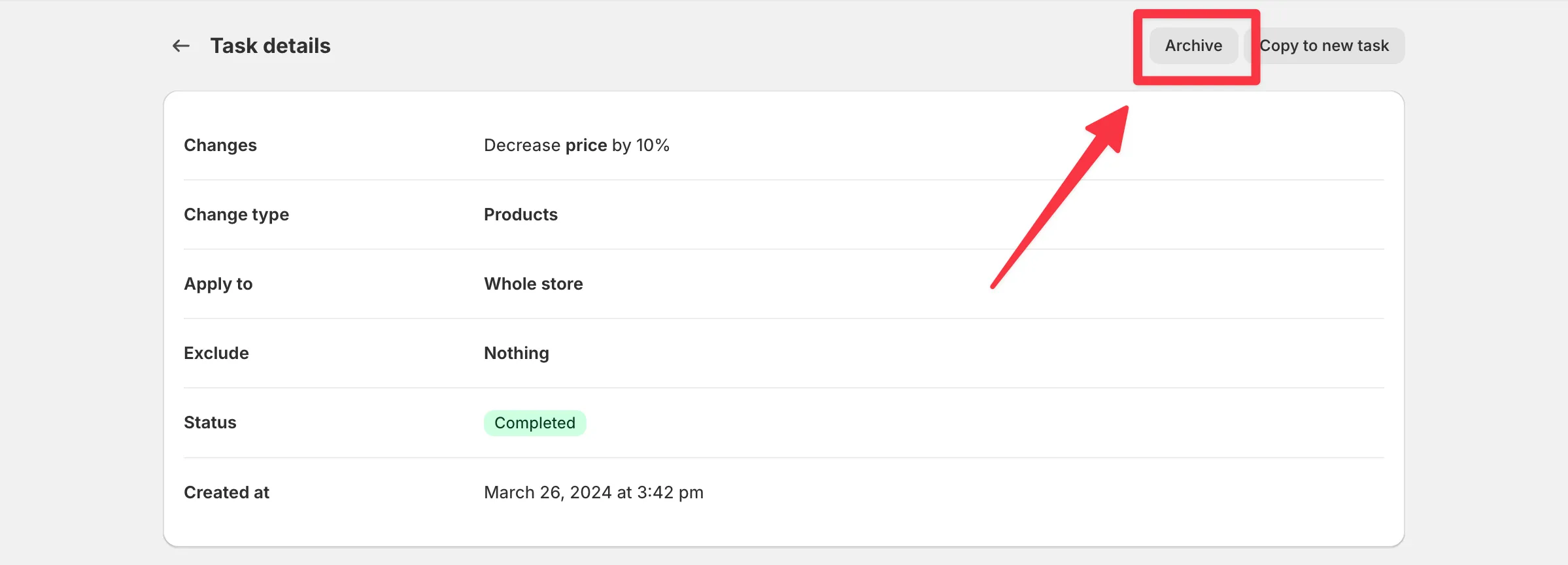
Section titled “Archive a task”Only completed tasks can be archived. Archiving hides a task from the main list without losing its change log or rollback.
-
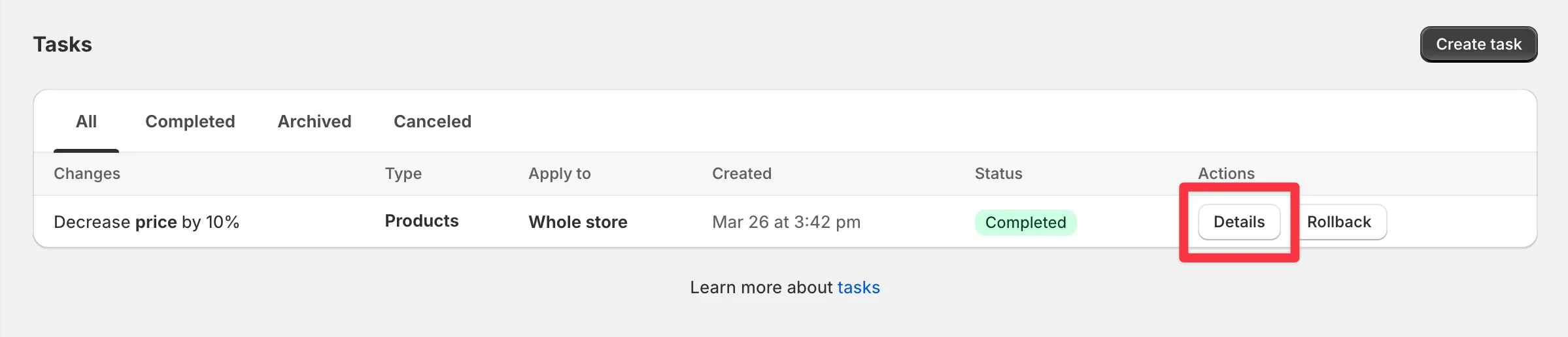
Open the task’s Details.
-
Click Archive.
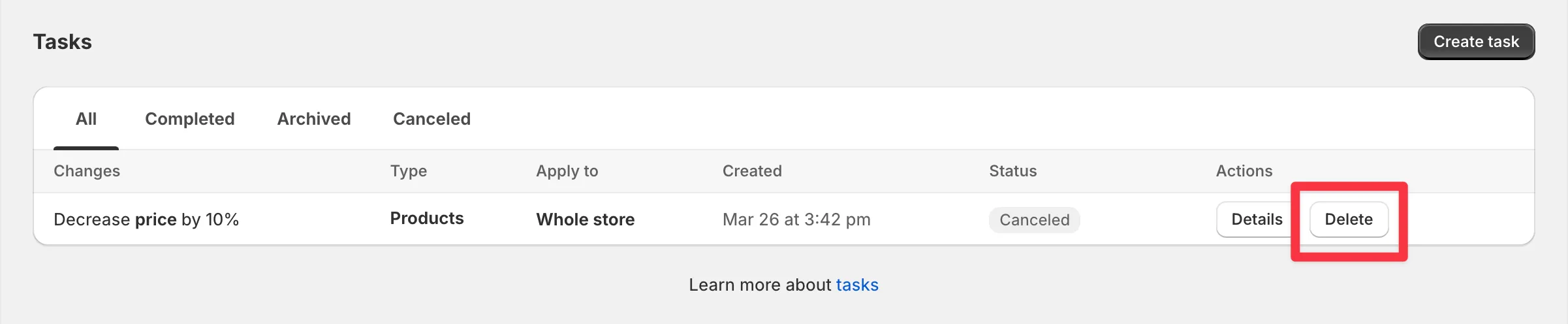
Delete a task
Section titled “Delete a task”Canceled tasks - and completed tasks that made no changes - can be deleted with the Delete button next to the task. Other completed tasks can’t be deleted because their backups power rollback; archive them instead.